



If you already use regular WhatsApp and want to move your account to WhatsApp Business, you don't need to start over from scratch. Understanding how to change WhatsApp to business account simply means knowing the right sequence: back up your existing data, install WhatsApp Business, verify your existing phone number, transfer your account information where supported, set up your business profile, and confirm your chats, contacts, and media came through correctly.
This guide walks through that entire process step by step, with practical checks along the way so nothing gets lost during the switch.
If you're starting completely fresh and haven't used WhatsApp Business at all, Anantya.ai's How to Create WhatsApp Business Account guide covers account creation and initial setup in detail. This blog is different - it's written specifically for people who already have an active personal WhatsApp account and want to convert or move it into WhatsApp Business without losing their existing chats, contacts, and media.
Let's get into how the actual conversion works.
Can You Change a Personal WhatsApp Account to WhatsApp Business?
Yes. WhatsApp allows users to move from the regular WhatsApp app to WhatsApp Business, and this is a fairly common step for freelancers, shop owners, and small business teams who've been using their personal number to talk to customers anyway.
It helps to understand the difference between two separate things:
Creating a brand-new WhatsApp Business account - starting fresh with a number that hasn't been used on WhatsApp before.
Converting or moving an existing personal WhatsApp account - where you already have chats, groups, and contacts tied to a number, and you want that same number to work inside WhatsApp Business instead.
This blog focuses on the second case: how to convert WhatsApp account to business account when you're not starting from zero.
People usually make this move because they want features regular WhatsApp doesn't offer - a searchable catalog, quick replies, automated greeting and away messages, labels for organizing customers, and a proper business profile with hours, category, and address. In most cases, the same phone number can be used for the transition, though the exact steps depend on WhatsApp's current setup flow, your device, and whether you're on Android or iPhone.
Put simply, learning how to convert WhatsApp to business account is really about migrating your existing digital identity - number, chats, and contacts - into an app built for business communication.
What Happens When You Switch From WhatsApp to WhatsApp Business?
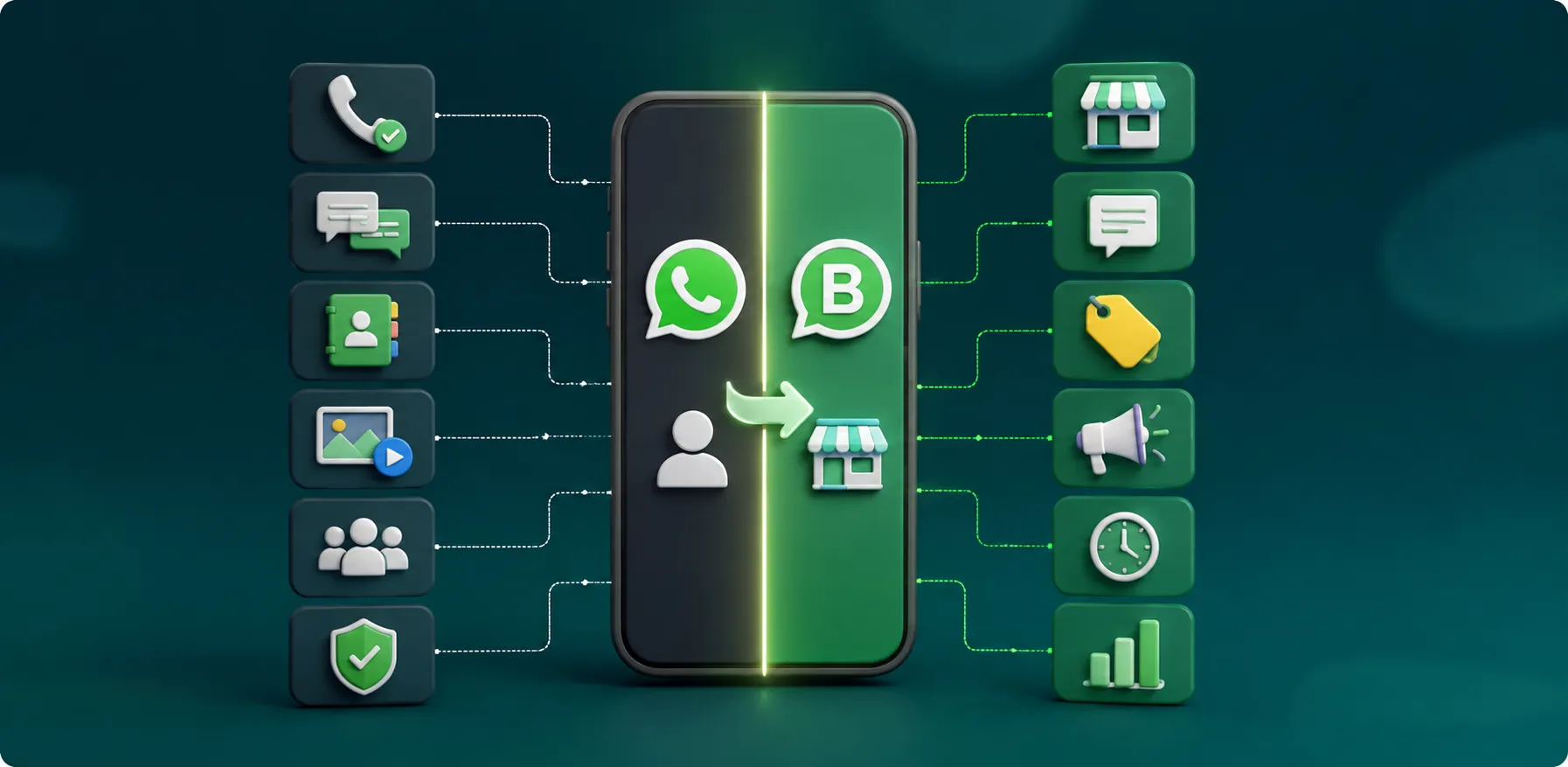
Before you begin, it helps to know what typically happens to each part of your account. This can vary slightly depending on your phone, backup settings, and app version, but here's the general picture:
Phone number: You'll usually need to verify the same number again inside WhatsApp Business, either through an SMS code or a phone call.
Existing chats: Your chats don't move on their own. They're generally restored from a backup, so having a recent backup ready matters a lot.
Contacts: Contacts come from your phone's address book, not from WhatsApp itself, so they're typically unaffected by the switch.
Photos/videos: Your media restores as part of your chat backup. If you have a lot of photos and videos, this part can take longer to finish.
Groups: Groups you were part of usually reappear once restoration is complete, along with their past messages.
Profile: Your old profile photo and name may carry over automatically, but you'll still need to set up a proper business profile afterward.
Personal WhatsApp app: Once your number is verified inside WhatsApp Business, it generally stops working in regular WhatsApp on the same device.
Business features: After switching, you get access to things like a catalog, labels, quick replies, greeting and away messages, and business profile fields.
None of this is guaranteed to be perfectly seamless - it depends heavily on whether you have a recent backup, enough storage, and an updated app. That's exactly why preparation matters so much.
Before You Change WhatsApp to Business Account: What to Prepare
A little preparation avoids most of the problems people run into during migration.
1. Check Your Phone Number
Make sure the number linked to your current WhatsApp account is accessible to you right now - you'll need to receive an SMS or phone call on it during verification. If you've switched SIM cards or numbers recently, confirm you can still receive messages on the number tied to your account.
2. Back Up Your WhatsApp Chats
This is the single most important step. Open WhatsApp, go to Settings > Chats > Chat Backup, and create a fresh backup:
On Android, backups typically save to Google Drive.
On iPhone, backups typically save to iCloud.
Make sure the backup timestamp shows "just now" or very recent, and that both chats and media are included if you want photos, videos, and documents restored later.
3. Make Sure You Have Enough Storage
Restoring chats and media requires free space both in your cloud account (Google Drive or iCloud) and on your phone itself. If storage is nearly full, the restoration may fail partway through or skip some media files.
4. Update WhatsApp
Before switching, update both the regular WhatsApp app and download the latest WhatsApp Business app from your device's official app store. Older versions sometimes handle backups and transfers differently.
5. Check Your Internet Connection
A stable Wi-Fi connection makes backup, download, and restoration noticeably faster and less likely to fail midway. Avoid switching over an unstable mobile network if you can help it.
How to Change WhatsApp to Business Account Step by Step
This is the core process. Follow it in order.
Step 1: Back Up Your Existing WhatsApp Account
Open your current WhatsApp app and run a manual backup one more time, even if you did this earlier. Go to Settings > Chats > Chat Backup > Back Up Now, and wait for it to finish completely before moving to the next step.
Step 2: Download WhatsApp Business
Get the WhatsApp Business app only from the official Google Play Store (Android) or Apple App Store (iPhone). Avoid third-party or unofficial APK sources, as these can compromise your account security.
Step 3: Open WhatsApp Business
When you launch the app for the first time, it will ask you to agree to its terms and then guide you through initial setup.
Step 4: Enter and Verify Your Existing Phone Number
Enter the same number your personal WhatsApp account uses, then verify it using the SMS code or phone call WhatsApp sends. This is a core part of how to switch to WhatsApp Business account - the number itself is what carries your identity across.
Step 5: Allow WhatsApp Business to Find/Transfer Your Existing Account Data
Once your number is verified, WhatsApp Business will usually detect that this number was previously used with regular WhatsApp and prompt you to restore your account data. Read this prompt carefully and follow the on-screen instructions rather than skipping ahead, since the transfer options shown can vary by device.
Step 6: Restore or Transfer Chats and Media
If a backup is found, WhatsApp Business will offer to restore it. This typically brings back:
One-on-one chats
Groups you were part of
Photos and videos
Documents
Voice messages, where included in the backup
Larger accounts with lots of media may take longer to restore. Not every single item is guaranteed to transfer perfectly every time - occasionally a file or two may need to be checked afterward.
Step 7: Create Your WhatsApp Business Profile
Once restoration finishes, set up your business identity:
Business name
Profile photo
Business category (e.g., retail, services, education)
Short business description
Business hours
Website link
Physical address, if relevant
If you want a more detailed walkthrough of building out a complete business profile, the How to Create WhatsApp Business Account blog covers this part in more depth.
Step 8: Review Your Account After Conversion
Before you consider the switch complete, run through this checklist:
☐ Chats restored
☐ Groups visible
☐ Contacts available
☐ Media accessible
☐ Business profile completed
☐ Notifications working
☐ Two-step verification enabled
☐ Privacy settings reviewed
How to Transfer WhatsApp to WhatsApp Business Without Losing Your Chats
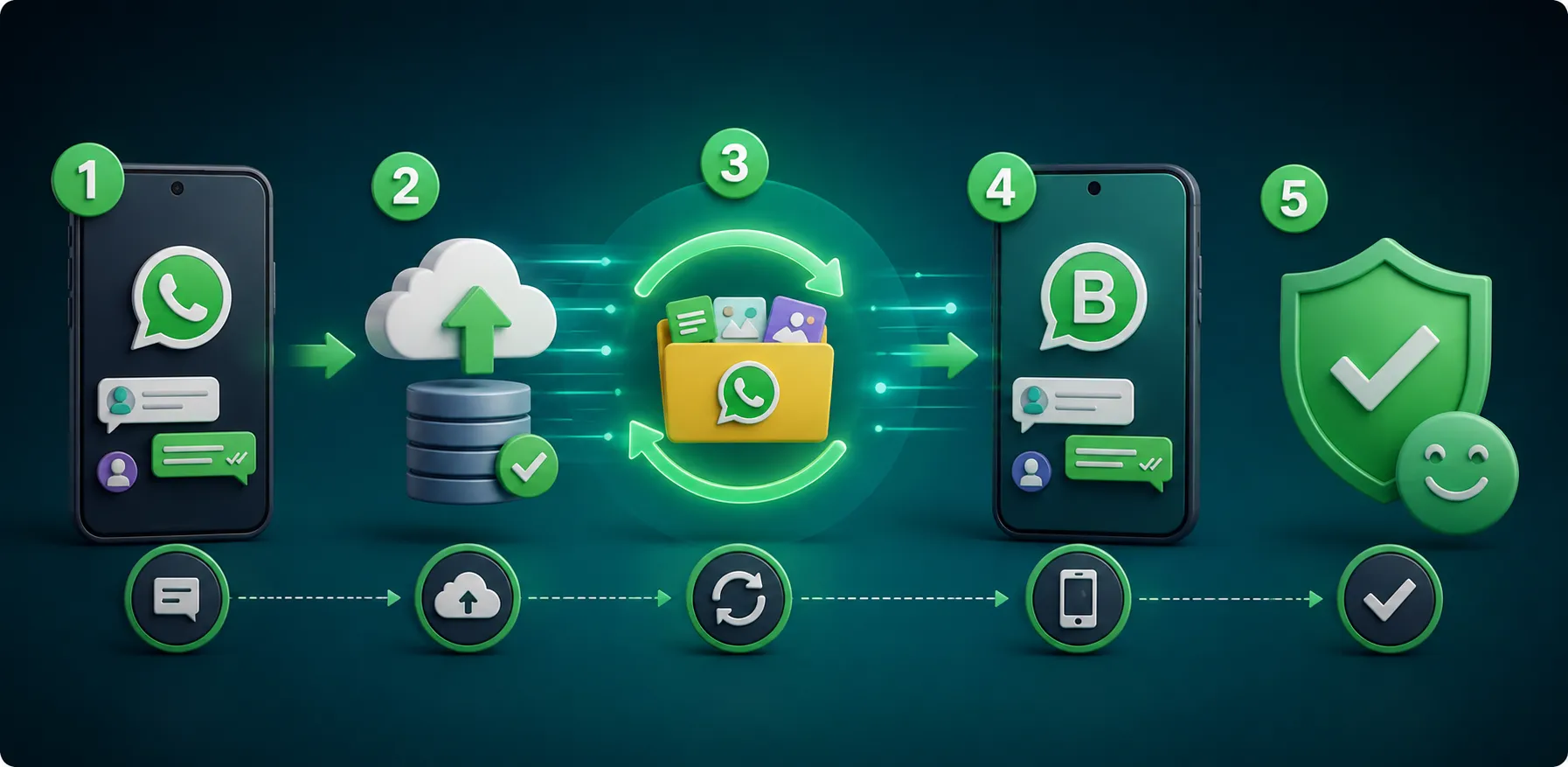
Since this is one of the most common concerns, it deserves its own walkthrough. Here's how to transfer WhatsApp to WhatsApp Business while keeping your conversation history intact:
Create a fresh backup in your regular WhatsApp app right before switching.
Install and open WhatsApp Business from the official app store.
Verify the same number you used on personal WhatsApp, when applicable to your setup.
Follow the transfer or restore prompts exactly as shown - don't back out or cancel mid-process.
Wait for restoration to complete fully before closing the app or using your phone for anything else.
Check your chats and media once restoration finishes to confirm everything came through.
Don't delete your old backup or uninstall regular WhatsApp prematurely - keep it until you've confirmed everything is intact in WhatsApp Business.
Keep in mind that migration behavior can differ depending on whether you're on Android or iPhone, which backup method you used, and which version of the app you're running. If something looks off, it's usually safer to check for an app update and try the restore step again rather than repeating the whole setup from scratch.
Can You Transfer WhatsApp to WhatsApp Business When Changing Phones?
Yes, but changing phones adds an extra step to the process. If you're only converting on the same device, backup and restore happen in one place. If you're also moving to a new phone, you first need to make sure your existing WhatsApp data is backed up or transferred using the currently supported WhatsApp migration process, and only then complete the WhatsApp Business setup on the new device. In other words, how to transfer WhatsApp to WhatsApp Business changes slightly depending on whether you're staying on the same phone or switching devices at the same time.
What If You Are Moving From Android to Android?
Back up your existing WhatsApp account on the old Android phone, making sure the backup is recent and tied to the correct phone number and Google account. Then set up WhatsApp Business on the new Android phone, verify the relevant phone number, and follow the restore or transfer prompts that appear. Once restoration finishes, check that your chats, groups, contacts, and media are all available. As with any migration, not every item is guaranteed to transfer perfectly every time.
What If You Are Moving From iPhone to iPhone?
Create a fresh WhatsApp backup on the old iPhone and confirm it's complete before starting. Install WhatsApp Business on the new iPhone, verify the appropriate phone number, and follow the transfer or restore process shown on screen. Allow the restoration to finish fully, then check your chats and media. The exact steps can depend on your current WhatsApp version and iOS setup, so what you see may vary slightly.
What If You Are Moving From Android to iPhone or iPhone to Android?
Cross-platform migration works differently from a same-device conversion. Don't assume a Google Drive backup can simply be restored on an iPhone, or that an iCloud backup can be restored directly on Android - instead, follow WhatsApp's currently supported official transfer method for your specific Android-to-iPhone or iPhone-to-Android combination. Compatibility, operating system versions, device models, and current app versions can all affect what's possible, so it's worth checking WhatsApp's official guidance for your exact devices before starting.
What Should You Do Before Changing Both Your Phone and WhatsApp Account?
Create a fresh backup on the old phone
Confirm the phone number you want to use going forward
Keep the old phone available until the transfer is verified
Update WhatsApp and WhatsApp Business where applicable
Make sure the new phone has enough storage
Use a stable internet connection
Do not erase or factory-reset the old phone immediately
After migration, check chats, groups, contacts, and important media
Taking these steps helps make sure your WhatsApp Business migration to a new phone goes smoothly, without losing access to conversations you still need.
Can You Use the Same Phone Number for WhatsApp and WhatsApp Business?
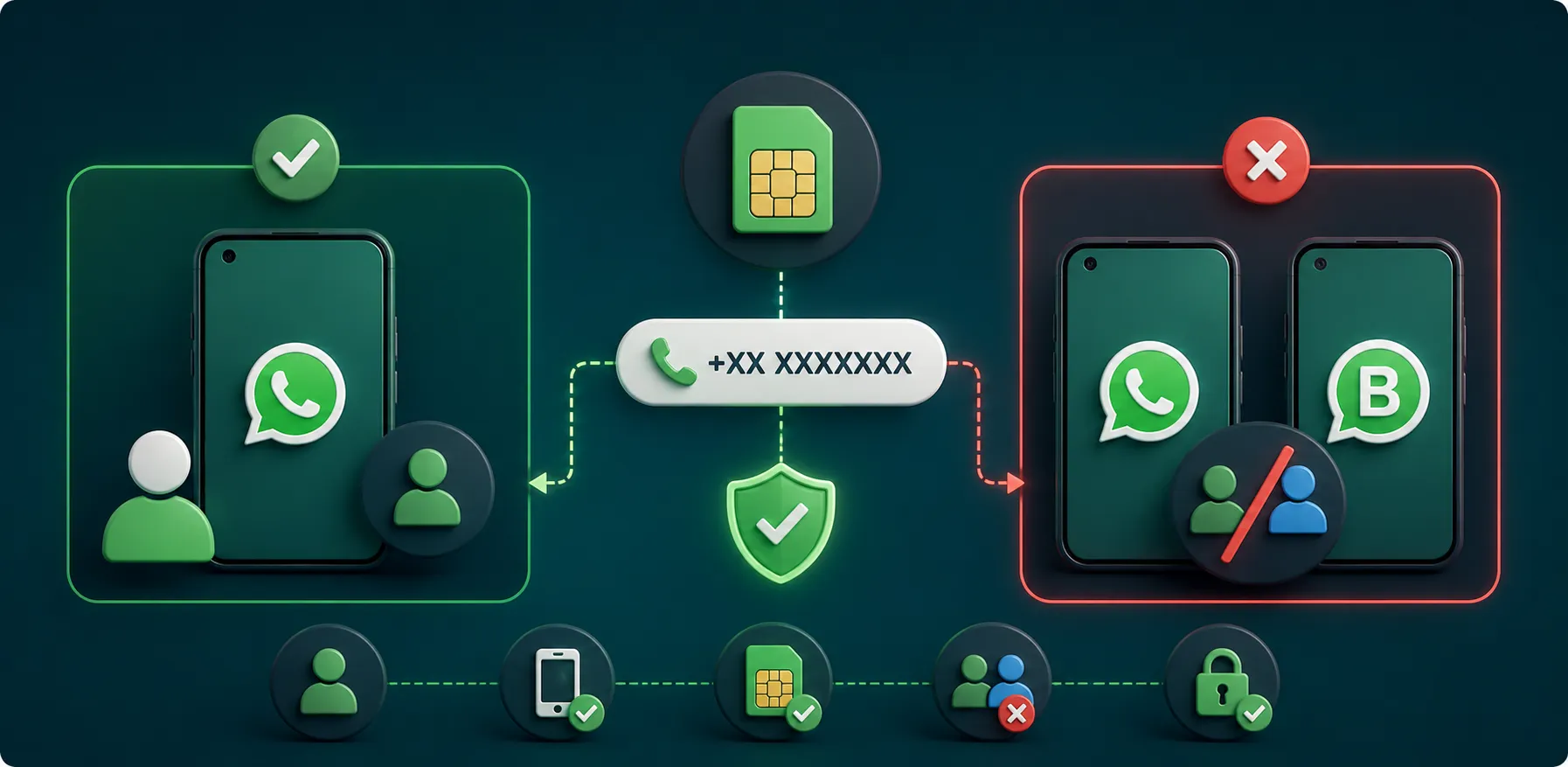
Generally, yes - the same number can be used during the conversion process, and this is the most common way people move from personal WhatsApp to WhatsApp Business.
A few things worth understanding:
Once a number is actively verified inside WhatsApp Business, it typically can't run independently and simultaneously inside regular WhatsApp on the same device at the same time.
If you want to keep using regular WhatsApp separately, you'd need a different number for that account.
Verification during setup always ties back to whichever number you enter, so it's worth confirming in advance which number you actually want your business identity attached to.
Since WhatsApp's exact product rules can be updated over time, it's worth checking the current official setup flow if anything looks different from what's described here.
What Happens to Your Old Personal WhatsApp Account?
When you move your number into WhatsApp Business, that number generally stops functioning inside the regular WhatsApp app on the same device. In other words, you shouldn't assume the same number can run as two fully independent, simultaneous accounts across both apps.
Your existing conversations and profile information typically move with you into WhatsApp Business, provided your backup was recent and complete. It's a good idea to review your new business profile carefully afterward - check that your display name, photo, and status reflect how you actually want to appear to customers, since these are now seen in a business context rather than a personal one.
WhatsApp Business Features You Can Use After Switching
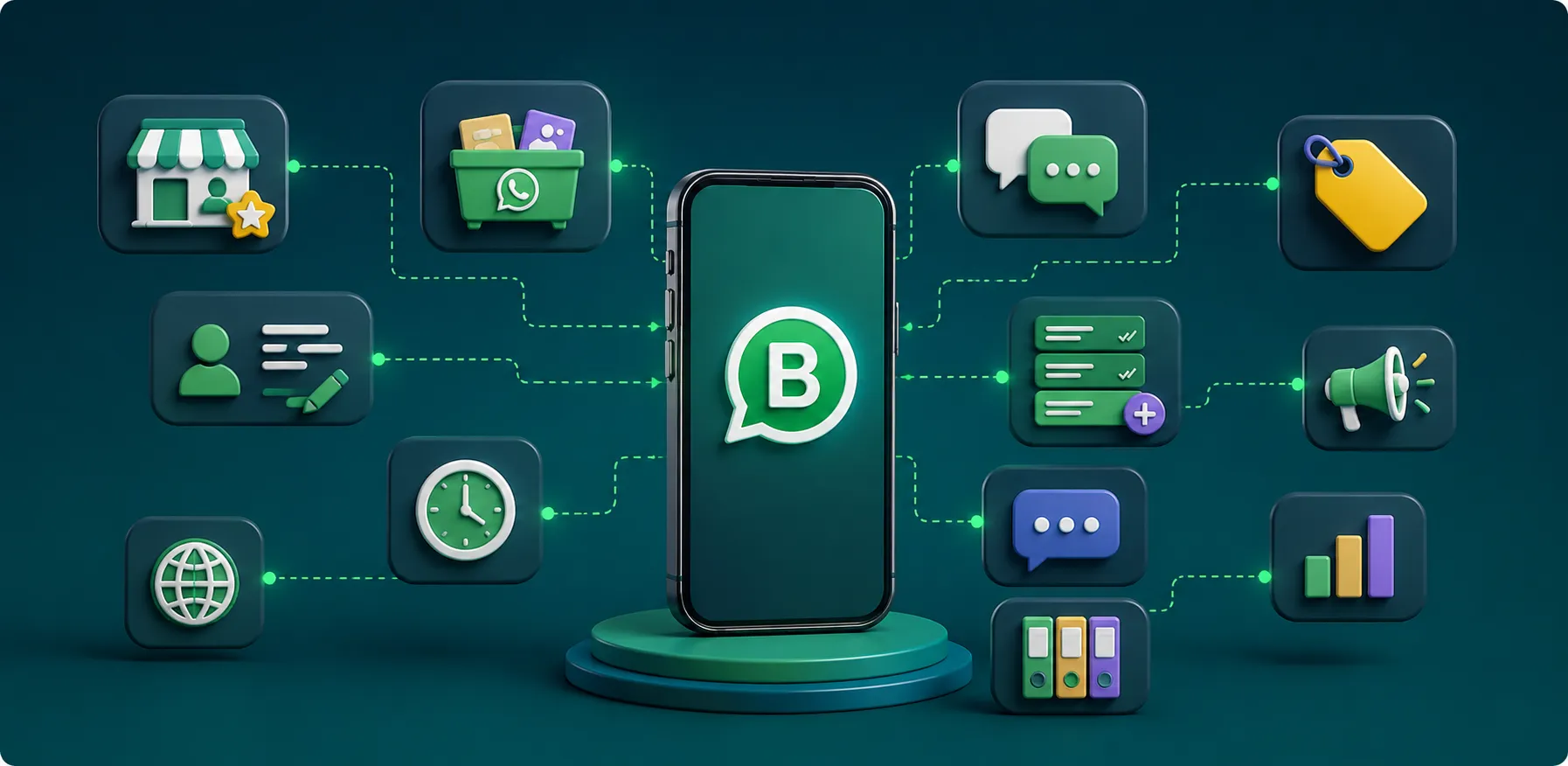
Once your account is set up, you'll have access to features designed specifically for business communication:
Business Profile - displays your name, category, address, and contact details in one place.
Business Category - helps customers understand what kind of business you run.
Business Description - a short summary of what you offer.
Business Hours - lets customers know when you're available to respond.
Catalog - a way to showcase products or services directly inside the chat app.
Quick Replies - saved responses for common questions, so you're not retyping the same answers.
Greeting Messages - an automatic message sent to new or returning customers.
Away Messages - automatic replies for when you're not actively available.
Labels - a way to organize chats by status, such as new lead, in progress, or completed order.
Together, these features are what make WhatsApp Business genuinely more useful than regular WhatsApp for anyone regularly talking to customers.
WhatsApp Business Privacy and Safety After Switching
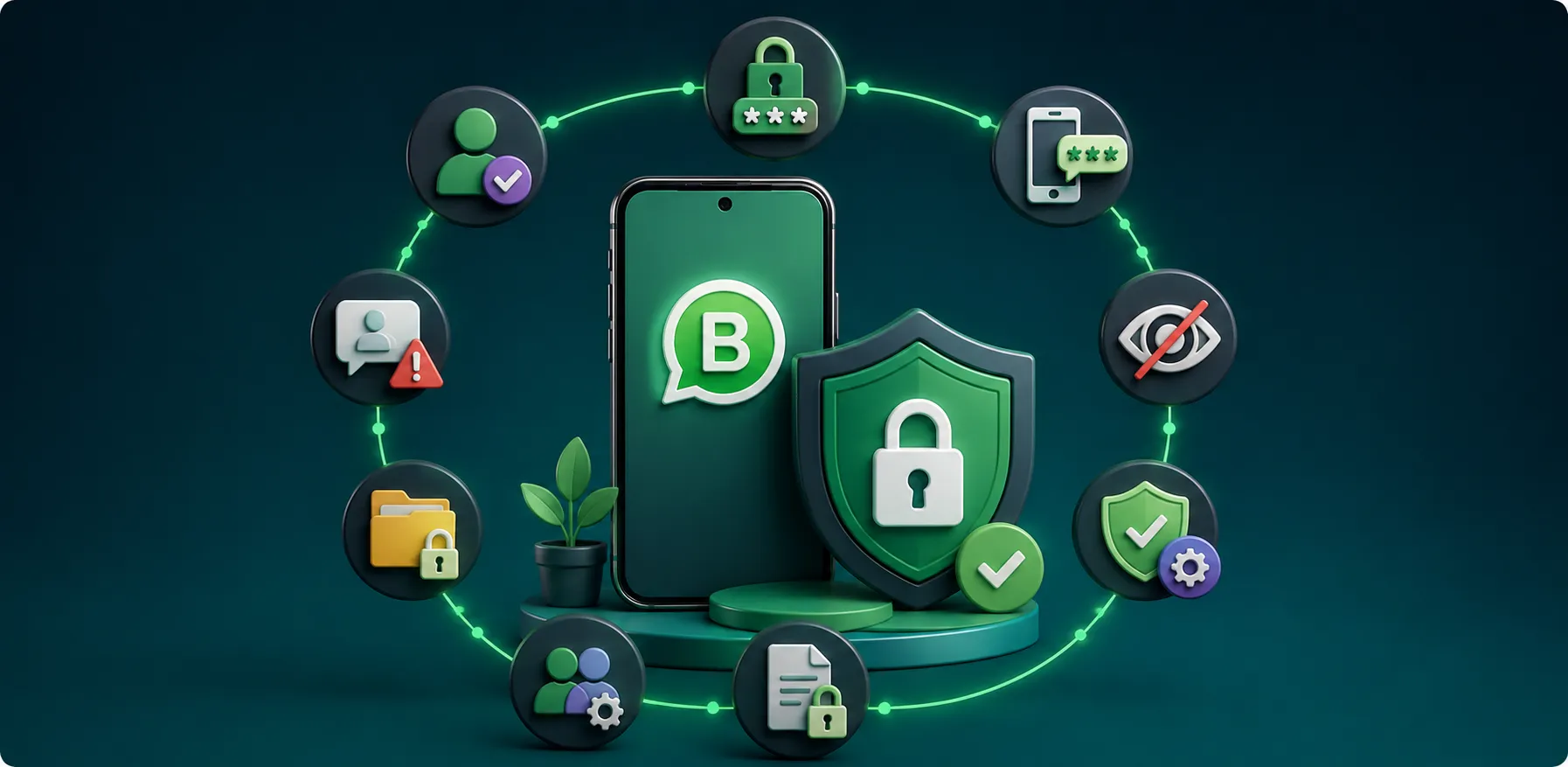
Once your account is live as a business, it's worth tightening up security, since you'll likely have more people messaging you than before.
Enable two-step verification so your account can't be taken over even if someone gets your SIM or verification code.
Never share OTPs or verification codes with anyone, including people claiming to be from WhatsApp support.
Watch for suspicious links sent by unknown contacts - avoid clicking links you weren't expecting.
Be cautious with unknown messages, especially ones asking for payment details or personal information.
Review active sessions and linked devices periodically to make sure only your own devices are logged in.
Limit unnecessary personal information in your business profile - only share what customers genuinely need.
Review your privacy settings for who can see your profile photo, status, and last seen.
Since your WhatsApp Business account becomes a direct customer communication channel, it's worth treating access to it with the same care you'd give to a business email account or a shared login.
What Is the WhatsApp Privacy Policy and Why Does It Matter for Businesses?
A privacy policy is simply a document that explains how an app collects, uses, and shares information about its users. WhatsApp has its own privacy policy that governs how it handles messages, account data, and metadata, and it's worth understanding the basics of this if you're using the app to talk to customers regularly.
For businesses specifically, it also matters to know the difference between using the standalone WhatsApp Business App (what this blog covers) versus broader business messaging environments like the WhatsApp Business Platform (API), which involve additional terms and integrations for larger-scale customer communication.
This blog isn't legal advice, and policies can be updated by WhatsApp over time, so it's worth reviewing the current terms directly. For a closer look at practical privacy and safety practices for business accounts, see Anantya.ai's WhatsApp Privacy & Safety for Business guide.
Common Problems When Converting WhatsApp to WhatsApp Business
Verification Code Not Received
Check that you have a signal, that the number entered is correct, and that you haven't hit a temporary limit on requesting codes. Waiting a few minutes and requesting again, or switching from SMS to a phone call, often resolves this.
Backup Not Found
Confirm you're signed into the correct Google account (Android) or iCloud account (iPhone) - the same one used when the backup was created - and that the phone number matches. Also check that WhatsApp has permission to access your cloud storage.
Chats Are Not Showing
Restoration can take a few minutes depending on how much data you have. Avoid closing the app while it's restoring, and give it time to finish before assuming something went wrong.
Media Is Missing
Photos and videos sometimes take longer to restore than text chats, especially over a slow connection. Check your backup settings to confirm media was actually included in the last backup.
WhatsApp Business Is Not Detecting the Existing Account
Double-check the phone number, confirm both apps are updated to their latest versions, verify backup permissions are granted, and try restarting your device before attempting the transfer again.
WhatsApp to WhatsApp Business Conversion Checklist
Before switching:
Backup completed
Number accessible
Apps updated
Storage available
Internet stable
During switching:
Verify number
Follow transfer prompt
Restore backup
Wait for completion
After switching:
Check chats
Check media
Complete Business Profile
Set greeting/away messages
Set quick replies
Enable security settings
Review privacy settings
Final Thoughts: Making the Switch to WhatsApp Business Smoothly
Switching from personal WhatsApp to WhatsApp Business makes sense for anyone who wants proper business-focused communication tools - a catalog, quick replies, business hours, and a professional profile without abandoning the number and conversations customers already know.
The key to doing this smoothly is preparation: complete a recent backup, confirm your number is accessible, and don't rush through the verification and transfer prompts. Once you're set up, take a few minutes to check that your chats and media are restored correctly, and review your privacy and security settings before you start using the account actively.
If you eventually need more advanced tools - multiple team members, automation, or large-scale customer messaging - that's usually when businesses start exploring the WhatsApp Business Platform (API) rather than the standalone app. But for most people simply learning how to change WhatsApp to a business account for the first time, the steps in this guide are all you need to get started.