



If you run a business, freelance, or manage social media pages, you have probably seen a "Chat on WhatsApp" button somewhere and wondered how it works. The good news is that it's much simpler than it looks.
You can create a WhatsApp link by using the standard https://wa.me/ format followed by your phone number. You can also add a pre-filled message so the chat box already has some text in it, or use an online generator so you don't have to build the link by hand. This guide covers every part of how to create a WhatsApp link from the basic format, to pre-filled messages, to official and third party generators, to using links in real marketing campaigns.
By the end of this article, you will know exactly how to create, test, and share a working WhatsApp link, whether you're doing it for the first time or setting one up for a business campaign.
Quick Answer: Create a WhatsApp Link in Seconds
Here is the fastest way to understand how to create whatsapp link formats before we go deeper.
The standard structure looks like this:
For example:
That's it. When someone clicks this link, WhatsApp opens a chat with that number no need to save the contact first.
A few formatting rules matter here:
Include the full country code
Include the complete phone number
Do not use +
Do not use spaces
Do not use hyphens
Do not use brackets
Do not add unnecessary leading zeros
The example number 971565480273 above is only a placeholder to show the format it is not a real number. If you're based in India, an example might look like 919355249992, where 91 is the country code and 9355249992 stands for your actual 10 digit number, written without spaces or a + sign.
Once you understand this basic format, learning how to create whatsapp link variations like ones with a pre-filled message becomes much easier.
Adding a Pre-Filled Message
You can also make a WhatsApp link open with a message already typed into the chat box. This is done by adding ?text= after the phone number:
https://wa.me/971565480273?text=Hello%20I%20want%20to%20know%20more
Notice that spaces in the message are replaced with %20. This is called URL encoding a way of writing text so it can safely travel inside a web link. You don't need to memorize encoding rules; most generators (including the one on Anantya.ai) do this automatically.
A few useful example messages:
Hello, I want to know more about your product.
Hi, I would like to book an appointment.
Hi, I saw your Instagram post and want to know more.
Adding a WhatsApp link with a message like this removes friction for the customer they don't have to think about what to type first. This small detail can make a real difference in how many people actually start a conversation.
What Is a WhatsApp Link?
A WhatsApp link is a web address (URL) that opens a WhatsApp conversation with a specific phone number, without the visitor needing to save that number in their contacts first.
You'll see this referred to by a few different names, all describing the same thing:
WhatsApp Click to Chat
WhatsApp direct chat link
WhatsApp contact link
These terms are used interchangeably across the internet, so don't worry if you see different wording on different sites they all mean the same whatsapp click to chat link.
The core idea is simple: instead of asking someone to manually add your number and then message you, a single click (or tap, on mobile) opens WhatsApp with the conversation already started. This is why so many businesses use it on their website, social media bio, ads, and printed materials.
Basic WhatsApp Link Structure
Let's break the link down piece by piece so the format makes complete sense.
Standard format
Example
Here's what each part means:
https:// — this just means the connection is secure. You don't need to change this part.
wa.me/ — this is WhatsApp's official short domain for click-to-chat links.
Phone number the business or person's WhatsApp number, written in international format (country code + number, no other symbols).
What NOT to add
+— WhatsApp's link format doesn't need itSpaces — Breaks the link
-(hyphens) — Breaks the link( )(brackets) — Breaks the linkLeading zero — Not needed once the country code is added
Wrong vs. correct examples
Incorrect:
+971 5654 80273 → Correct: 971565480273Incorrect:
+91 9355249992→ Correct: 919355249992Incorrect:
(555) 123-4567→ Correct:15551234567
Remember, these numbers are examples used only to demonstrate formatting they don't belong to real businesses. When you build your own link, swap in your actual WhatsApp number, keeping the same clean, symbol free format.
Why Do Businesses Need a WhatsApp Link?
A WhatsApp link removes several small barriers between a customer and your business. Here's why that matters:
Customers don't need to save your number first
It gives faster access to your business
There are fewer steps between seeing an offer and actually contacting you
It works well on websites
It works well on social media
It works well in ads
It works well in email signatures
It works well as a QR code
It's useful for offline marketing (posters, packaging, business cards)
It supports customer support conversations
It helps with lead generation
It's useful for sales enquiries
It's useful for appointment requests
Here's the basic customer journey a WhatsApp link creates:
Customer sees your business
↓
Clicks your WhatsApp link
↓
WhatsApp opens automatically
↓
Customer starts the conversation
It's worth being realistic here: a WhatsApp link doesn't automatically guarantee a sale. What it does is make it much easier for someone who is already interested to actually reach out. The rest how you respond, how fast, and how helpfully still matters.
How to Create a WhatsApp Link
Now let's get into the actual methods. There are several ways to create a WhatsApp link, ranging from doing it manually in under a minute, to using a generator tool that handles the formatting for you. We'll walk through each one so you can pick whichever fits your comfort level.
Method 1: Create a WhatsApp Link Manually

This is the most direct way to learn how to create whatsapp link formats yourself, without relying on any tool.
Step 1: Open a browser or a plain text editor (like Notepad).
Step 2: Start with the base format:
Step 3: Add your phone number, including the country code, right after the slash.
Step 4: Double check that you've removed:
Any + sign
Spaces
Hyphens
Brackets
Any unnecessary leading zero
Step 5: Open the completed link in your browser to see if it opens WhatsApp correctly.
Step 6: Test it on your own phone before you publish it anywhere.
Example:
That's the entire manual process. Once you've done it once, you'll be able to repeat how to create a whatsapp link manually for any number in seconds.
How to Create a WhatsApp Link With a Pre-Filled Message
To add a starting message, use this format:
https://wa.me/PHONE_NUMBER?text=YOUR_MESSAGE
Spaces in your message need to be written as %20, and other special characters (like ?, &, or #) may need their own encoding too. For short, simple messages, you can usually type them directly and let your browser or generator handle the encoding.
Examples:
https://wa.me/971565480273?text=Hi%2C%20I%20want%20to%20know%20more%20about%20your%20services
https://wa.me/971565480273?text=Hello%2C%20I%20would%20like%20to%20book%20an%20appointment
If your message is longer or includes punctuation, it's easier to use a generator (covered next) rather than encoding it by hand. A well written WhatsApp link with a message saves your customer a few seconds and often leads to a more useful first message than a blank chat box would.
Method 2: Use WhatsApp's Official Link Generator
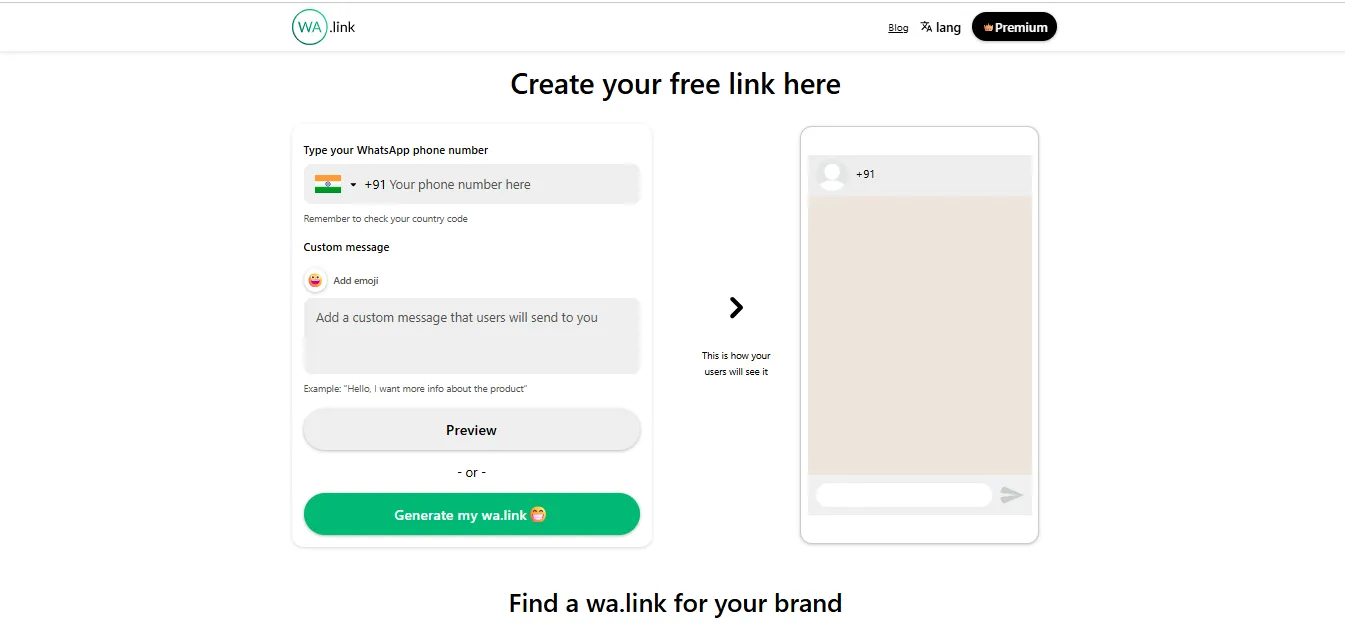
If you'd rather not format the URL yourself, WhatsApp offers its own official tool for this.
You can find it here: https://create.wa.link/
This is a straightforward way to see how to generate whatsapp link URLs without typing the raw format by hand. Here's the general process:
Open the official WhatsApp link generation page.
Enter your WhatsApp phone number.
Add a pre-filled message, if you want one.
Generate the link.
Copy the link.
Test it before sharing it anywhere.
Since WhatsApp occasionally updates its tools and interface, treat the exact steps and screen layout as a general guide rather than something fixed forever. If something looks slightly different when you visit the page, the core idea stays the same: enter your number, add an optional message, and generate the link.
It's worth keeping in mind the difference between WhatsApp's own official method and third party generator tools (like the one covered next). Both can work well, but it helps to know which one you're using, especially when troubleshooting later.
Method 3: Generate a WhatsApp Link Using Anantya ai
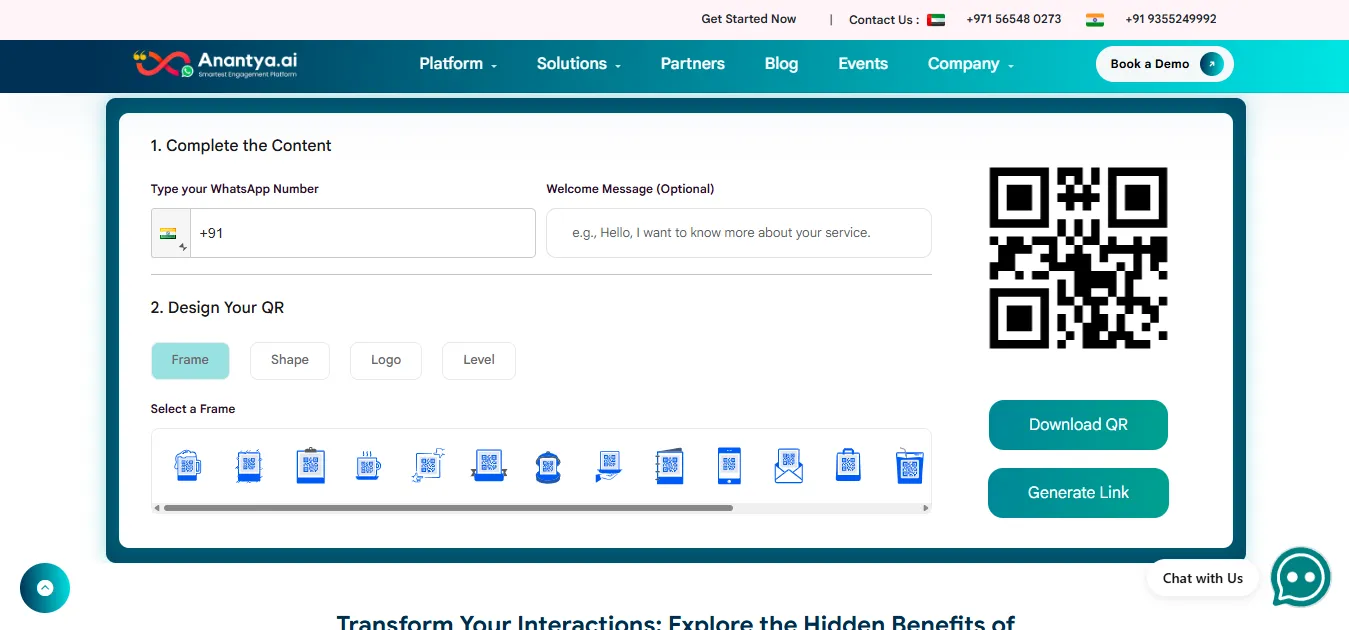
If you want a simple way to generate a link especially if you're already exploring WhatsApp tools for your business Anantya.ai offers its own free WhatsApp link generator.
You can access it here: https://anantya.ai/generate-whatsapp-link/
This tool is built for anyone who wants to learn how to generate whatsapp link URLs quickly, without manually typing out the format or worrying about encoding a message correctly. Here's how it works:
Step 1: Open the Anantya.ai WhatsApp link generator
Go to https://anantya.ai/generate-whatsapp-link/.
Step 2: Enter your WhatsApp number
Select the correct country code and enter your number carefully. A wrong digit here means the link won't reach the right chat, so it's worth double checking before moving on.
Step 3: Add your message
If you want the chat to open with some text already typed in, add it here. This is where you create your own WhatsApp link with a message, tailored to whichever page or campaign you're using it for.
Step 4: Generate the link
Click the generate/create button to produce your link.
Step 5: Copy and test
Copy the generated link and open it yourself ideally on both a phone and a computer before publishing it anywhere.
This kind of whatsapp link maker is especially useful if you're creating several links at once, for example, one for your website, a different one for Instagram, and another for a specific ad campaign, each with its own message.
Once you have your link, you can place it in places like:
Your website
Instagram
Facebook
LinkedIn
Email signatures
Ads
QR codes
Landing pages
Product pages
Anantya.ai's generator is meant to make this first step getting a working link quick and simple. It doesn't require any technical knowledge, and it's a good starting point before exploring more advanced WhatsApp Business tools, which we'll cover later in this guide.
Method 4:Create a WhatsApp Business Link
If you already use the WhatsApp Business app, you likely have access to a direct link feature built into the app itself.
The general process usually looks like this:
WhatsApp Business → Business Tools (or Settings) → Short Link / Direct Link option → Copy or share the link.
Because WhatsApp periodically updates its app menus, exact labels and steps can shift between versions and regions. If the menu names don't match exactly what's described here, look for a section related to "short link," "business link," or "share your link" within your Business Tools or Settings area.
WhatsApp Business users typically also have access to:
Sharing the link directly through other apps
A QR code version of the same link
The ability to attach a pre-filled message
Once generated, this whatsapp business link works the same way as a regular wa.me link from the customer's side clicking it opens a chat but it's managed from within your Business account tools rather than being typed manually.
WhatsApp Link vs WhatsApp Business Link
It helps to clear up a common point of confusion early on.
A basic wa.me link can point to any WhatsApp number personal or business. It's just a URL format; it doesn't care what kind of account is on the other end.
A WhatsApp Business account can generate and manage its own version of this link directly inside the app, often alongside extra tools like a business profile, catalog, and quick replies.
Here's the important part: creating or using a link does not, by itself, turn a personal WhatsApp account into a WhatsApp Business account. The account type is a separate setting. A whatsapp business link is simply a link generated from within a Business account the URL structure behind it is largely the same idea as any other click-to-chat link.
Advanced Tactics: Track Your WhatsApp Links With UTM Parameters
Once you're comfortable with the basics, you might want to track where your WhatsApp conversations are coming from Instagram, an email campaign, a Google ad, and so on. This is where UTM parameters come in, but it's important to understand their real limitations before relying on them.
A normal WhatsApp link tells WhatsApp which number to open a chat with. UTM parameters, on the other hand, are tags originally designed for tracking visits to web pages inside analytics tools like Google Analytics.
Here's the part many articles get wrong: adding UTM style parameters directly to a wa.me link does not automatically mean the resulting WhatsApp conversation will show up as tracked traffic inside Google Analytics. WhatsApp is a separate app, not a web page, so once the customer leaves your website and enters WhatsApp, that "visit" tracking generally stops.
A more accurate example
https://wa.me/971565480273?text=Hello%20I%20saw%20your%20Instagram%20post
This link doesn't include UTM parameters instead, it uses a pre-filled message that tells you where the customer came from simply by reading their first message. This is often the simplest and most reliable form of "tracking" for a basic WhatsApp link.
If you need proper campaign level attribution (for example, knowing exactly how many people from a specific Instagram ad clicked through to WhatsApp), a more accurate setup usually involves:
A tracked landing page that the customer visits first, which then links to WhatsApp
Campaign specific redirect URLs that log the click before forwarding to wa.me
Dedicated analytics tools built for this purpose
CRM integrations that log the source of each new conversation
Platform-specific tracking, such as Meta's Click to WhatsApp ad reporting
This is a more honest picture of how to create whatsapp link tracking setups that actually work, rather than assuming UTM tags alone will do the job.
Best Practices for UTM Parameters
If you do use UTM parameters for example, on a landing page that then links to WhatsApp keep these practices in mind:
Use lowercase consistently
Keep naming consistent across campaigns
Avoid unnecessary spaces
Use clear, descriptive campaign names
Keep source names consistent (don't switch between "insta" and "instagram")
Use consistent medium names (like "social" or "email")
Don't create multiple names for the same channel
Keep campaign names short but meaningful
Add dates only when they're genuinely useful
Document your naming system somewhere your team can reference
Never include personal or sensitive information in a URL
Example naming:
utm_source=instagram
utm_medium=social
utm_campaign=summer_sale
utm_source — where the traffic came from (e.g., instagram, google, newsletter)
utm_medium — the type of channel (e.g., social, email, cpc)
utm_campaign — the name of the specific campaign (e.g., summer_sale)
How to Add WhatsApp Links to Social Media

Once your link is ready, the next step is placing it where your customers will actually see it. Here's how to do that on the most common platforms.
WhatsApp Link for Instagram
A whatsapp link for instagram is one of the most common use cases, since Instagram doesn't allow clickable links in regular post captions.
In your Instagram bio:
Open your Instagram profile.
Tap "Edit Profile."
If your account type supports a WhatsApp or contact button, add it there directly.
If not, add your WhatsApp link through the available website or link field in your profile.
Save your changes.
Test the link from another account or device to confirm it works.
Keep in mind that available options can vary depending on your account type (personal, creator, or business), your region, and your current app version.
Example bio text:
Chat with us on WhatsApp:
Rather than displaying a long raw link, a cleaner approach is to use a short call to action like:
"Message us on WhatsApp"
with the link attached behind it, wherever the platform allows clickable or tappable text.
How to Add a WhatsApp Link to Facebook
Facebook offers a few different spots to place your link:
Facebook Page contact button - many Page templates allow you to set a WhatsApp contact button directly.
Website field - you can add your WhatsApp link as your website URL if you don't have a separate site.
Post content - in posts where clickable links are supported, you can include your WhatsApp link directly.
Page "About" or contact info section a natural place to list your click to chat link alongside other contact details.
Not every post format on Facebook displays links the same way, so it's worth checking how your specific Page and post type render a WhatsApp link before relying on it heavily.
How to Add a WhatsApp Link to LinkedIn
LinkedIn works a little differently since it's more professional and text based:
Website or contact field on your personal profile or Company Page, where appropriate
Featured section, where supported, to pin your WhatsApp link prominently
Company Page information section
Post content, in posts where links are clickable
Articles or newsletters, where a WhatsApp link can be included naturally within the content
A simple, professional call to action works well here:
"Have a question? Chat with us on WhatsApp."
Followed by your link.
Other Common Places to Add a WhatsApp Link
Email Add a simple line like "Chat with us on WhatsApp" with your link, either in the email body or your signature.
Website Use a clear CTA button, such as "Chat on WhatsApp," placed somewhere visible like your homepage or contact page.
Google Business Profile Some businesses can add a WhatsApp or messaging option through their available contact settings, depending on region and account type. Don't assume this feature is available everywhere check what's currently supported for your listing.
YouTube Add your link to your channel's "About" section or in video descriptions, where clickable links are supported.
TikTok Use the website/link field in your profile settings, where available for your account type.
SMS You can simply text your WhatsApp link directly to a customer it will open the same way it does from any other app.
QR Code Convert your WhatsApp link into a QR code for:
Posters
Product packaging
Business cards
Store counters
Menus
Brochures
Ads You can use your WhatsApp link in ad copy, or use native Click to WhatsApp ad formats where the platform supports them, which often skip the need for a separate landing page.
How to Use WhatsApp Links for Marketing
WhatsApp links aren't just for general contact they're genuinely useful across different stages of a customer's journey. Here are some practical use cases:
Lead generation
Product enquiries
Customer support
Appointment booking
Demo requests
Sales enquiries
Order support
Event registration
Campaign responses
Feedback collection
Here's how different industries might phrase their pre-filled message:
Real estate:
"Hi, I want to know about available properties."
Healthcare:
"Hi, I want to book an appointment."
E-commerce:
"Hi, I want to know more about this product."
Education:
"Hi, I want to know about the course."
Matching your pre-filled message to the context where the link appears makes the conversation feel relevant from the very first message, instead of generic.
Best Practices for WhatsApp Links
A short checklist to keep in mind whenever you set one up:
Use the correct country code.
Remove unnecessary symbols like +, spaces, and hyphens.
Keep the pre-filled message short.
Make the message sound natural, not robotic.
Match the message to the page or channel it's placed on.
Test every link before publishing it.
Test on mobile.
Test on desktop.
Recheck the link if you ever change your business phone number.
Use campaign specific links where it's useful to tell sources apart.
Use clear call to action text, not a raw URL.
Don't hide important information behind confusing redirects.
Keep links consistent across related campaigns.
Track performance through a proper analytics setup, not guesswork.
Make sure the WhatsApp number is active and in use.
Make sure the account behind the number can actually receive messages.
Do Not Do This: Common WhatsApp Link Mistakes
Small formatting errors are the most common reason links fail. Here's what to avoid.
Don't add +
Wrong:
Correct:
Don't add spaces
Wrong:
Correct:
Don't add hyphens
Wrong:
Correct:
Don't forget the country code - Without it, WhatsApp won't know which country the number belongs to, and the link simply won't open the right chat, or won't open at all.
Don't use an incorrect phone number - Always double check digits before publishing. A single wrong digit sends the link nowhere useful.
Don't write an overly long pre-filled message - Keep it short, natural, and easy to read at a glance.
Don't publish an untested link - Always click it yourself first, on more than one device if possible.
Don't assume UTM parameters automatically track WhatsApp conversations As covered earlier, this requires a proper tracking setup, not just adding tags to the URL.
Don't reuse the exact same message everywhere - Where it's useful, customize the pre-filled message based on where the link is placed, so the first message already gives you context.
Common Troubleshooting
Problem: WhatsApp link is not opening
Possible reasons:
Incorrect phone number
Incorrect or missing country code
Extra symbols in the URL
A typo somewhere in the link
The number isn't registered on WhatsApp
A browser or device issue
Solution: Recheck the phone number and URL format carefully, then test the link on a different browser or device.
Problem: WhatsApp says the number is invalid
Check the following:
Country code is correct
Number is complete and accurate
+ has been removed
Spaces and hyphens have been removed
The number is actually registered with WhatsApp
Problem: Pre-filled message is not showing
Check that:
?text= is present in the URL
The message is correctly encoded
Spaces are represented as %20 (or properly encoded)
Special characters are encoded correctly
There are no accidental spaces or broken characters in the link
Problem: Link works on mobile but not on desktop
WhatsApp Web and WhatsApp Desktop availability, along with whether you're logged in, can affect how the link behaves. Test it in:
A mobile browser
A desktop browser
WhatsApp Web directly
Problem: Link opens but the wrong message appears
Double check the encoded text in the URL, and confirm you copied the correct, most recent version of the link.
Problem: QR code is not working
Regenerate the QR code from the correct, tested WhatsApp link, and try scanning it with more than one phone before printing or publishing it anywhere.
Things People Often Miss When Creating WhatsApp Links
A quick "easy to miss" checklist worth reviewing before you publish any link:
Correct country code
Clean number formatting (no symbols)
Confirming it's the right WhatsApp number
Proper URL encoding for messages
A relevant pre-filled message
Testing before publishing
Testing on mobile
Testing on desktop
Clear call to action text instead of a raw link
Campaign specific links where useful
A real analytics/attribution setup, if tracking matters
Testing QR codes on more than one device
Updating links if your business number ever changes
Basic privacy considerations
Avoiding sensitive information inside pre-filled messages
Making sure the message matches the source or channel
How Anantya ai Can Help Businesses Go Beyond a WhatsApp Link

A WhatsApp link is a great starting point it makes it easy for a customer to begin a conversation. But once a business starts receiving a steady stream of enquiries, a single link is usually just the first step in a longer process.
This is where Anantya.ai comes in, with tools built specifically for businesses managing WhatsApp conversations at scale:
WhatsApp Business API access for verified business messaging
Broadcasting to reach many customers at once
Marketing campaigns built specifically for WhatsApp
Chatbot and workflow automation to handle common, repetitive questions
Segmentation so different customer groups receive relevant messages
Live chat and team inbox so multiple team members can manage conversations
Human handoff, so a bot can pass a conversation to a real person when needed
WhatsApp Commerce and catalog tools for showcasing products directly in chat
CRM integrations to keep customer data connected across systems
Click to WhatsApp Ads support for running ad campaigns that open directly into chat
OTP and notification use cases for order updates, verification, and reminders
Here's how it typically connects back to the simple link you started with:
WhatsApp link
↓
Customer starts a conversation
↓
Business receives the enquiry
↓
Automation handles common questions
↓
Team takes over when needed
↓
Customer moves toward an enquiry, booking, or purchase
If you haven't created your link yet, you can start with Anantya.ai's free generator here: https://anantya.ai/generate-whatsapp-link/. And if your business is already handling a growing number of WhatsApp conversations, it may be worth exploring how the WhatsApp Business API and related automation tools can support that growth.
Conclusion
Creating a WhatsApp link is genuinely simple once you understand the basic format. The standard wa.me structure is enough to build a working, direct chat link in under a minute, and adding a pre-filled message makes it even easier for customers to start a useful conversation.
If you'd rather skip manual formatting, both WhatsApp's official generator and Anantya.ai's generator can build the link for you. WhatsApp Business users also have a direct link built into their app, which works the same way from a customer's perspective.
Once your link is ready, you can place it across your website, social media profiles, email signatures, printed QR codes, and ad campaigns just remember to test every link before publishing it, and set up proper analytics if campaign tracking really matters to your business.
Whether you're setting one up for the first time or refining your approach, knowing how to create whatsapp link URLs properly and avoiding the small formatting mistakes covered in this guide will save you time and prevent broken links down the line.
If you're ready to create one now, try the free Anantya ai WhatsApp link generator, and if your business is starting to handle more conversations than a single link can manage, take a look at what Anantya ai's WhatsApp Business API and automation tools can do next.