



The Quick Answer
The fastest way to generate a WhatsApp QR code is to open WhatsApp or WhatsApp Business, tap the QR code icon next to your name in Settings, and share the code that appears. If you want your logo on the code, a branded design, or a message that is already typed when the chat opens, you need a different route: build a WhatsApp chat link (a wa.me link) and turn it into a QR code with a generator tool.
Here is the short version:
Open WhatsApp or WhatsApp Business on your phone.
Go to Settings (on iPhone, the Settings tab at the bottom right) or tap the three-dot menu and then Settings (on Android).
Tap the QR code icon next to your name or profile picture. On WhatsApp Business, you can also look under Business tools > Short link.
Tap Share to send the code, or save it and print it.
For a custom design or a pre-filled message, paste a wa.me chat link into a QR code generator, or use Anantya.ai's free WhatsApp QR generator.
Scan the finished code with a second phone before you share or print it.
A quick warning about menus: WhatsApp changes its layout from time to time, and the steps differ a little between Android, iPhone and WhatsApp Business. Also, the QR code you see on WhatsApp Web is a different thing. That one only links your account to a browser. It is not a code for sharing your number.
The rest of this guide explains the three methods, when each makes sense, and how to avoid the mistakes that make printed codes useless.
What Is a WhatsApp QR Code Generator?
A WhatsApp QR code generator is a tool that converts a WhatsApp chat link, usually a wa.me link with or without a pre-filled message, into a scannable QR code, so people can open a chat with your number without typing it or saving it first.
That definition covers the custom tools. WhatsApp also has its own QR code inside the app. It works on the same idea, but you do not choose a number or a message. It is simply tied to your account.
What a WhatsApp QR code does
When someone scans the code with their camera or a QR scanner, their phone reads the link stored inside it and hands it to WhatsApp. WhatsApp then opens the chat with your number. If the code was built from a link that includes a message, that text appears in the message box. The person still has to press Send.
How it differs from a normal website QR code
A website QR code stores a web address and opens it in a browser. A WhatsApp QR code stores a wa.me link, which is designed to open a WhatsApp conversation. The code itself looks the same. What differs is the destination it points to. A WhatsApp QR code creator, in other words, is just a link-to-QR converter with a WhatsApp link as its input.
Personal, Business and custom: three different things
Personal WhatsApp QR code: Generated inside the regular WhatsApp app and tied to your account. People scan it to start a chat with you or add you as a contact. You can reset it, which stops the old code from working.
WhatsApp Business QR code: Available in the WhatsApp Business app, usually alongside your business profile and short link. It is meant for customers contacting a business.
Custom QR code from a chat link: Made with an outside tool using a wa.me link. You pick the number, can add a pre-filled message, and can style the code. It works like a WhatsApp contact QR code with extra control.
Why businesses use them
Typing a phone number into a new chat is a small hurdle, but it is still a hurdle. A scan removes it. That is why you see these codes on shop counters, packaging, menus and posters. They also remove typing mistakes, which matter more than people expect.
How to Generate WhatsApp QR Code Step by Step (The Overall Process)
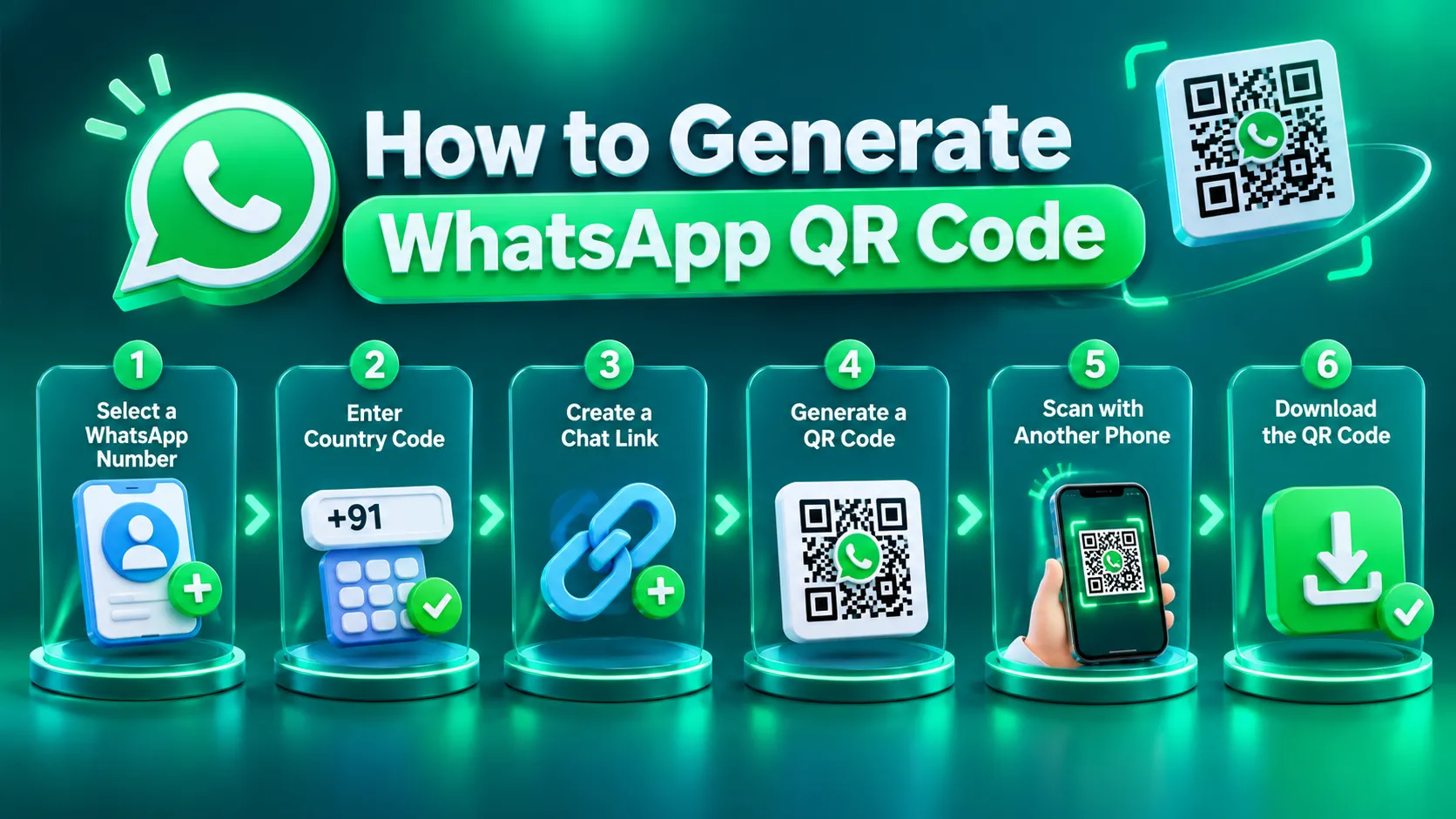
Before choosing a tool, it helps to understand the general flow. Every method below is a variation of these steps:
Decide which WhatsApp number should receive messages. Pick a number your team actually monitors. A code on a printed brochure will outlive many marketing campaigns.
Write the number in international format. That means the country code followed by the number, with no plus sign, spaces, brackets or dashes. WhatsApp's own click to chat help page gives https://wa.me/919355249992 as a correct format and https://wa.me/+91-(935) 5249992 as an incorrect one. For an Indian number, you would use 91 followed by the ten-digit number.
Create the chat link. The base link is https://wa.me/ followed by the number. To add a message, append ?text= and the URL-encoded message.
Generate the QR code. Use WhatsApp's built in feature or a generator that accepts the link.
Test it on another device. Scan with an iPhone and an Android phone if you can.
Download and place it. Choose a suitable file format, then put the code where customers will actually see it.
Method One: WhatsApp's Official QR Code Feature
This is the first party option. It is built into WhatsApp and WhatsApp Business, so it needs no outside tool, no sign up and no cost.
How to get WhatsApp QR code in the app
If you are wondering how to get WhatsApp QR code details for your own number, this is the place to start. The steps below reflect what widely published guides describe, and the exact wording on your phone may differ by version.
On Android:
Open WhatsApp and tap the three-dot menu.
Tap Settings.
Tap the QR code icon next to your name.
On the My code tab, you will see your code. Tap Share to send it.
On iPhone:
Open WhatsApp and tap Settings at the bottom right.
Tap the QR code icon next to your name.
Tap the share button at the top right.
On WhatsApp Business: Open Settings and tap the QR code icon, or go to Business tools > Short link, where the short link and its code are available.
To invalidate an old code, use Reset QR code from the three-dot menu on the QR screen. After a reset, the old code stops working, so anything you printed earlier will be dead.
How customers use it
Customers open WhatsApp, go to the QR scanner, and scan your code, or they point their phone camera at it. For a business code, this leads them toward a chat with the business.
Who should use it
The built in option suits individuals, freelancers and small shops that want a quick, familiar way to share a contact. It is free and needs no account anywhere else.
Its limits
It has no real branding options. You cannot add a logo, choose a campaign specific message, or build several codes for several campaigns from one number. It is also tied to your account, so a reset invalidates every copy you have already shared. For printed marketing material, many businesses prefer a custom code for these reasons.
Method Two: A Third-Party WhatsApp QR Code Generator
If you want to create WhatsApp QR code designs with extra control, the second route is to use an independent website that turns a WhatsApp chat link into a QR code. Think of it as a WhatsApp QR code maker that sits outside the app. These tools are not made or endorsed by WhatsApp. Treat them as separate products with their own terms, pricing and privacy policies.
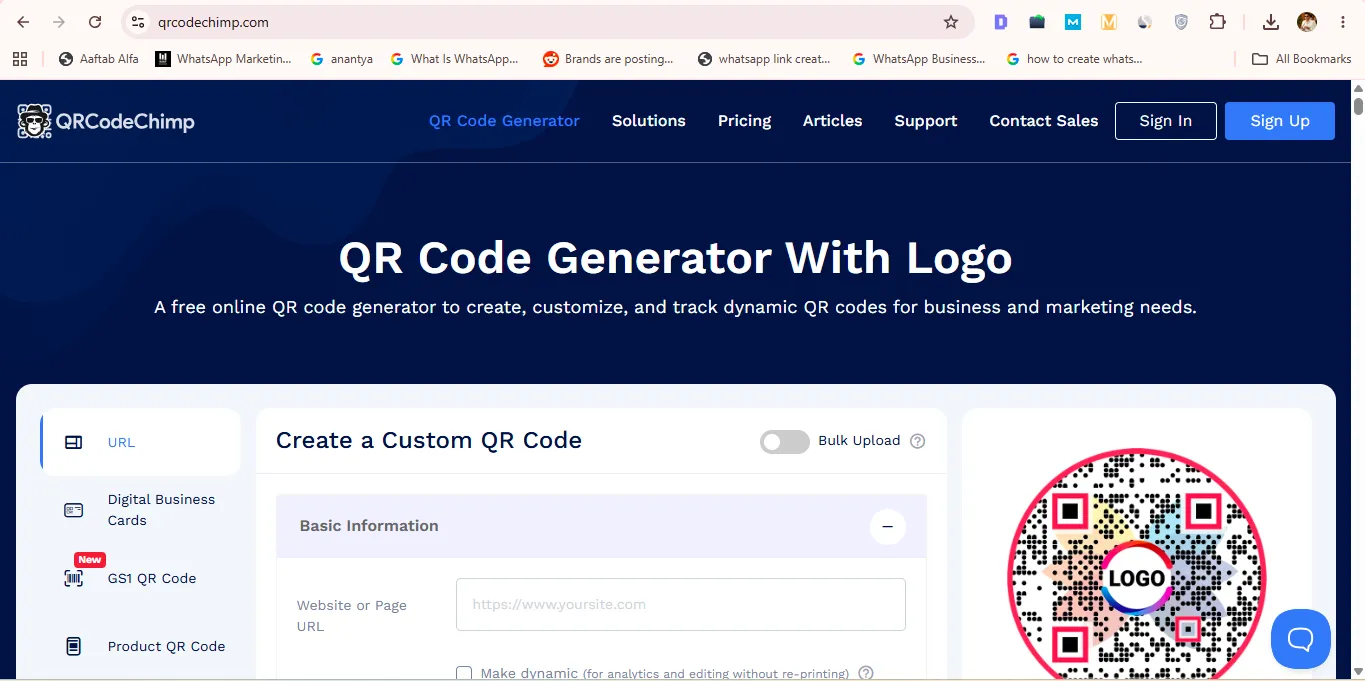
The example we checked: QRCodeChimp
There are many tools in this category. We looked at QRCodeChimp as one example because its WhatsApp page documents its features clearly. This is not a claim that it is the best or most popular option.
From its own page, this is what it offers:
A WhatsApp specific form with a country code, number and optional pre-filled message.
Design controls for colours, shapes, patterns, a logo and a call to action frame.
Both static and dynamic codes. Dynamic codes allow editing the number or message later and viewing scan analytics.
Download sizes up to 4096 x 4096 pixels, plus vector formats (SVG, EPS) and PNG.
Bulk creation from a spreadsheet, and folders for organising codes.
A free plan, though saving a code requires creating an account, and paid plans exist. We did not verify paid pricing, so check its pricing page before relying on dynamic codes.
How to use a third party generator
Open the tool's WhatsApp QR code page.
Select the WhatsApp option, or the URL option if the tool has no WhatsApp type, then enter your number or paste your wa.me link.
Add a pre-filled message if the tool allows it.
Customise the design if you want to.
Generate, save and download the code.
Scan test it on at least two phones before sharing.
Static versus dynamic codes
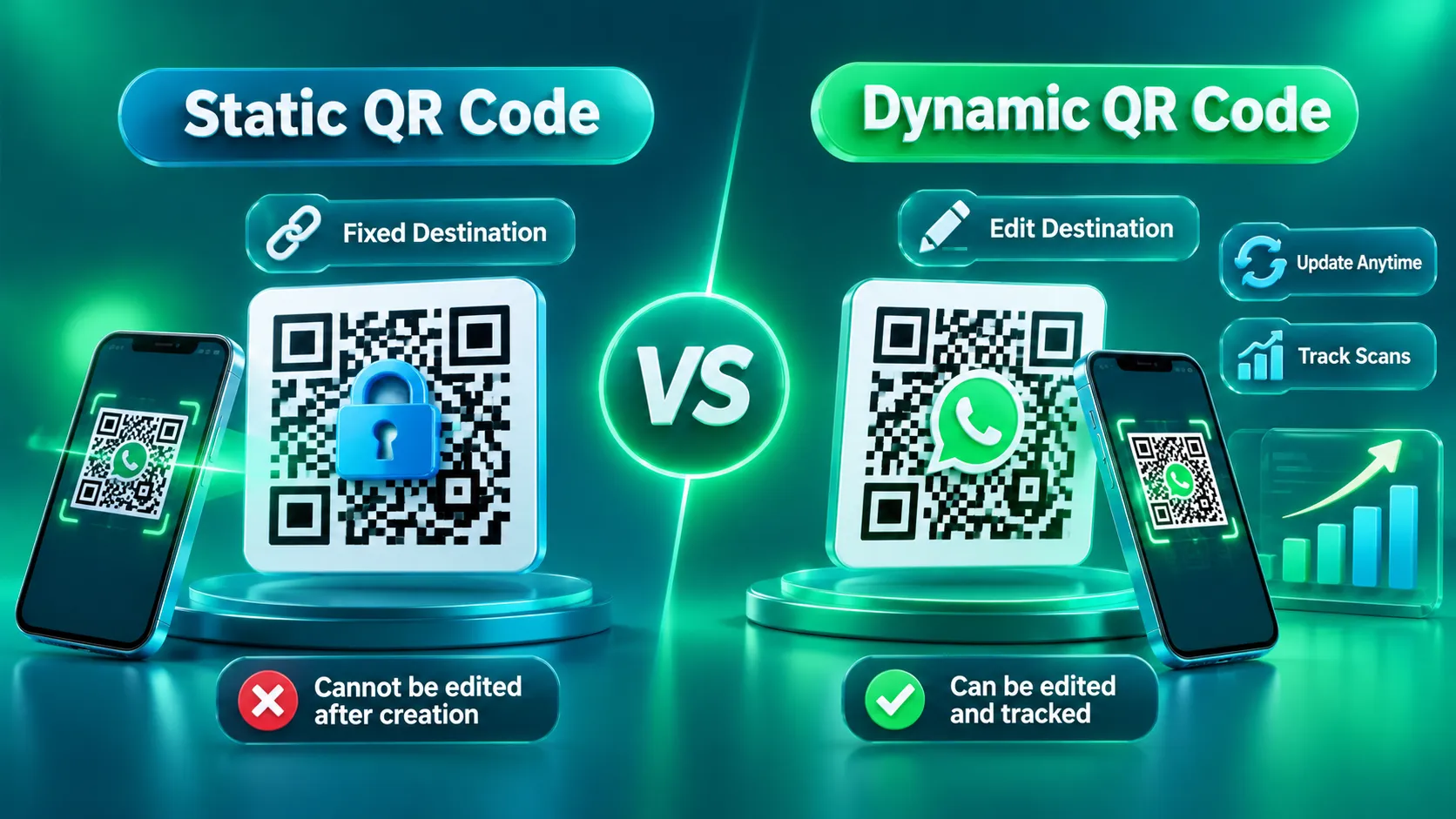
A static code stores the destination directly inside the pattern. It never depends on a third party after you download it, but it also cannot be changed. If the number or message changes, you must generate a new code and replace every printed copy.
A dynamic code stores a short redirect link that points to the provider's server, which then forwards people to the real destination. That lets you change the destination later and track scans. The trade off is dependence: the code works only while the provider's service and your account stay active. For example, QRCodeChimp states that a dynamic code works while the QR code and its account remain active, and that a code can pause if the account reaches its plan's scan limit. Read the terms before putting a dynamic code on anything expensive to reprint.
Method Three: Anantya ai WhatsApp QR Code Generator
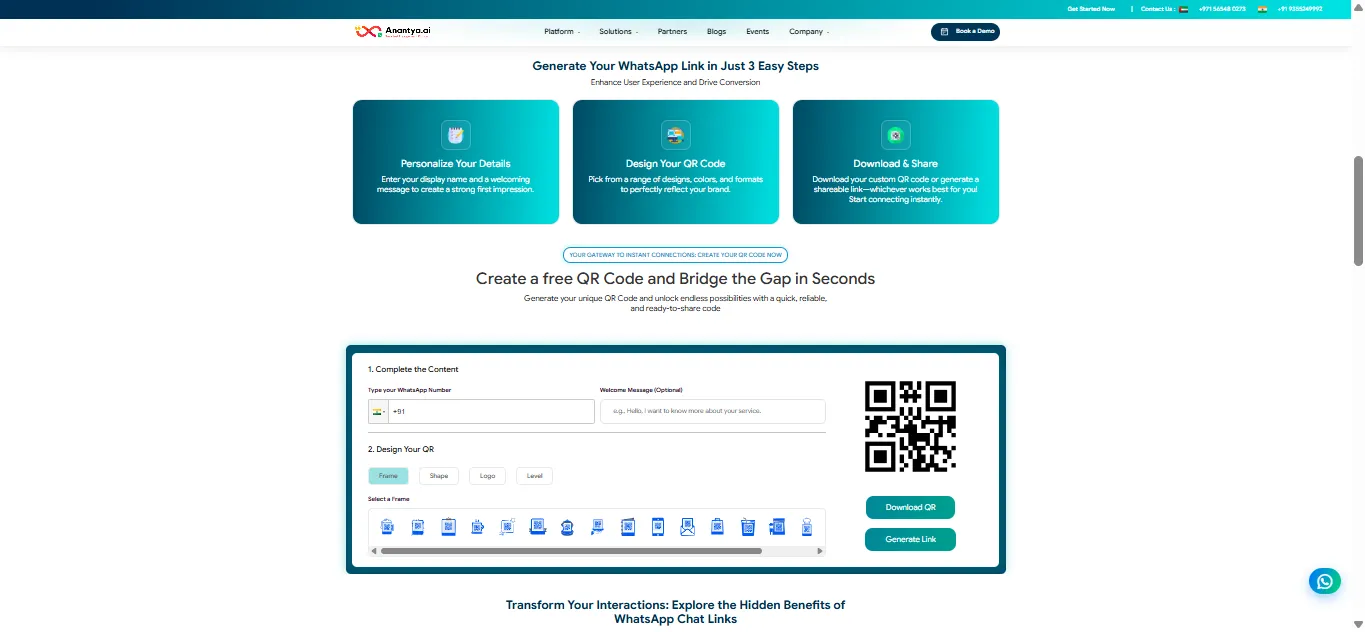
Anantya ai offers its own free tool for building a WhatsApp chat link and a QR code with it. To be clear about what this is: it is Anantya ai's tool. It is not WhatsApp's own feature, and this guide does not claim any official partnership between the two for the tool. WhatsApp's built in code and Anantya ai's generator simply serve different needs. If you want to create WhatsApp QR code designs that carry your branding, this is the kind of tool you would use.
What the tool offers
Based on the live tool page, these are the features we could confirm:
Number entry with a country selector. You choose your country and type your WhatsApp number. The page says to include the country code without a plus symbol, so check the live preview to make sure the code is not entered twice.
Optional welcome message. You can add a pre-written message that fills the chat box when someone opens the link. The page shows a live chat preview as you type, which helps you see how the message will look. As always with WhatsApp links, the customer still presses Send.
QR code design panel. The panel lets you pick a frame (there are 17 on the page), adjust the shape, and add a logo.
Download and link options. You can download the QR code, or generate the shareable WhatsApp link instead.
Free to use. The page describes the tool as free.
What we could not confirm from the page: dynamic QR codes, scan analytics, and the exact file formats of the download. Do not assume the tool offers them. If the number or message changes, plan to generate a new code and replace the printed copies.
Why each feature matters
Frames and shapes help the code look like part of your packaging or poster instead of a random black square. A frame can also carry a call to action, which nudges people to scan.
A logo helps people recognise the brand behind the code. It should stay small. A large logo covers part of the pattern and can make the code harder to read.
The welcome message saves customers from typing and tells your team what the enquiry is about. A code on a product box might say "Hi, I have a question about this product" while a code at a store entrance might say something different.
Preview before download lets you catch a wrong number or an awkward message before it ends up on a thousand flyers. A preview is not a scan test, though. Always scan the downloaded file.
Design is only useful if the code still scans. Strong contrast and generous empty space around the code matter more than decoration.
Steps to use the Anantya ai tool
Open the Anantya.ai WhatsApp QR code generator.
Select your country and enter your WhatsApp number.
Add an optional welcome message and check it in the live preview.
In the QR design area, choose a frame and shape, and upload a logo if you have one.
Check the preview, then scan test the code on a separate phone.
Click Download QR and use the file where customers will see it, or use Generate Link if you need the link as well.
Official WhatsApp Feature vs Third-Party Generator vs Anantya ai
1. WhatsApp Built-in QR
Provider: WhatsApp
Main Purpose: Share your account or business chat
Ease of Use: Very easy; already in the app
Customization: Not verified as customisable
Logo or Image: No
Pre-filled Message: Depends on the app and screen
Download Options: Share or screenshot
Static or Dynamic: Tied to your account; reset invalidates it
Best Use Case: Simple personal or small-business sharing
Cost / Account: Free
2. Third-Party Generator (QRCodeChimp)
Provider: Independent company
Main Purpose: Custom, trackable QR codes for many uses
Ease of Use: Easy; account needed to save
Customization: Colours, shapes, patterns, frames, logo
Logo or Image: Yes
Pre-filled Message: Yes
Download Options: Several sizes; SVG, EPS, PNG
Static or Dynamic: Both
Best Use Case: Campaigns that need tracking or later edits
Cost / Account: Free plan; paid plans exist; account to save
3. Anantya ai Tool
Provider: Anantya ai
Main Purpose: Free WhatsApp link and QR creation
Ease of Use: Easy; form based
Customization: Frames, shapes, logo
Logo or Image: Yes
Pre-filled Message: Yes (welcome message)
Download Options: Download QR button; format PNG
Static or Dynamic: Not verified; treat as fixed
Best Use Case: Branded codes for print and digital use
Cost / Account: Described as free
A plain built in code is often enough for a simple personal chat. A custom generator becomes useful when the code will be printed on brand material, when different campaigns need different messages, or when you want a design that matches your identity.
Why Do Businesses Need a WhatsApp QR Code?
A WhatsApp QR code reduces the effort needed to start a conversation, which is its main value. Common real world uses include:
Retail stores and product packaging: "Scan to ask about this product."
Restaurants: Menus and table cards for bookings, orders or feedback.
E-commerce: Order inserts and delivery notes for support or returns questions.
Support desks: A code at the counter instead of a long phone number.
Brochures and visiting cards: An easy way to reach a sales contact.
Events and trade shows: Booth banners that let visitors message you on the spot.
Lead generation and sales enquiries: Posters and print ads that send interested people straight into a chat.
Service bookings: Salons, clinics and repair shops taking appointment requests.
Offline-to-online marketing: Connecting a physical touchpoint with a digital conversation.
Campaign specific messages: A different pre-filled message for each flyer or location, so your team knows where an enquiry came from.
None of this guarantees sales or higher engagement. A code only removes one step. What happens after the scan depends on how quickly and helpfully you respond.
How to Generate WhatsApp QR Code with a Pre-Filled Message
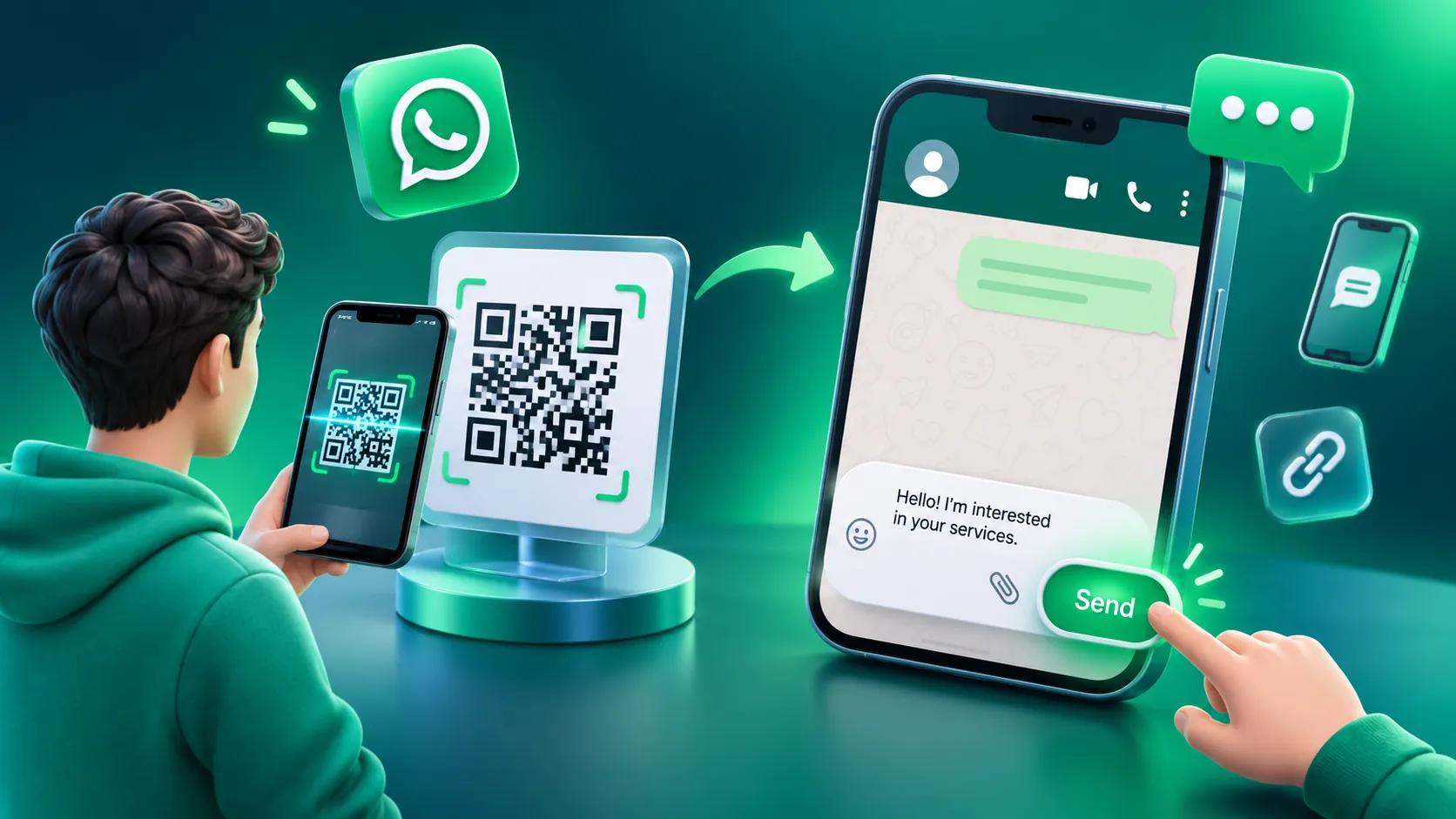
What a pre-filled message is
A pre-filled message is text that appears in the message box when someone opens a supported WhatsApp chat link. The customer normally still has to press Send. Scanning the code never sends the message on its own. A WhatsApp message QR code is simply a QR code built from a link that includes that text.
The steps
You can create WhatsApp QR code files with a message in a couple of minutes. Follow this order:
Prepare the number in international format (country code plus number, no symbols).
Write a short, relevant message. Keep it brief, and make it match where the code will appear.
Add the message to the chat link. Use https://wa.me/919355249992?text=<urlencodedtext>.
Paste the link into a compatible QR code generator.
Generate the code.
Scan test it and confirm that the correct number and message appear.
An example
Here is an illustration with a fictional number. Replace it with your own valid WhatsApp number:
https://wa.me/919355249992?text=Hi%2C%20I%20want%20to%20know%20more%20about%20your%20products.
The message reads: "Hi, I want to know more about your products."
About URL encoding
Spaces, commas and other special characters need URL encoding inside a link. For example, a space becomes %20 and a comma becomes %2C. Many generators handle this for you automatically. If you are building the link by hand, check it by opening it on your phone before turning it into a code.
Using Anantya ai for this
Anantya ai's tool has an optional welcome message field next to the number field. Type your message there, check the live chat preview, and generate the code. If you use another generator that has a WhatsApp option, the process is the same: number first, message second, design last.
How to Use WhatsApp QR Codes for Marketing
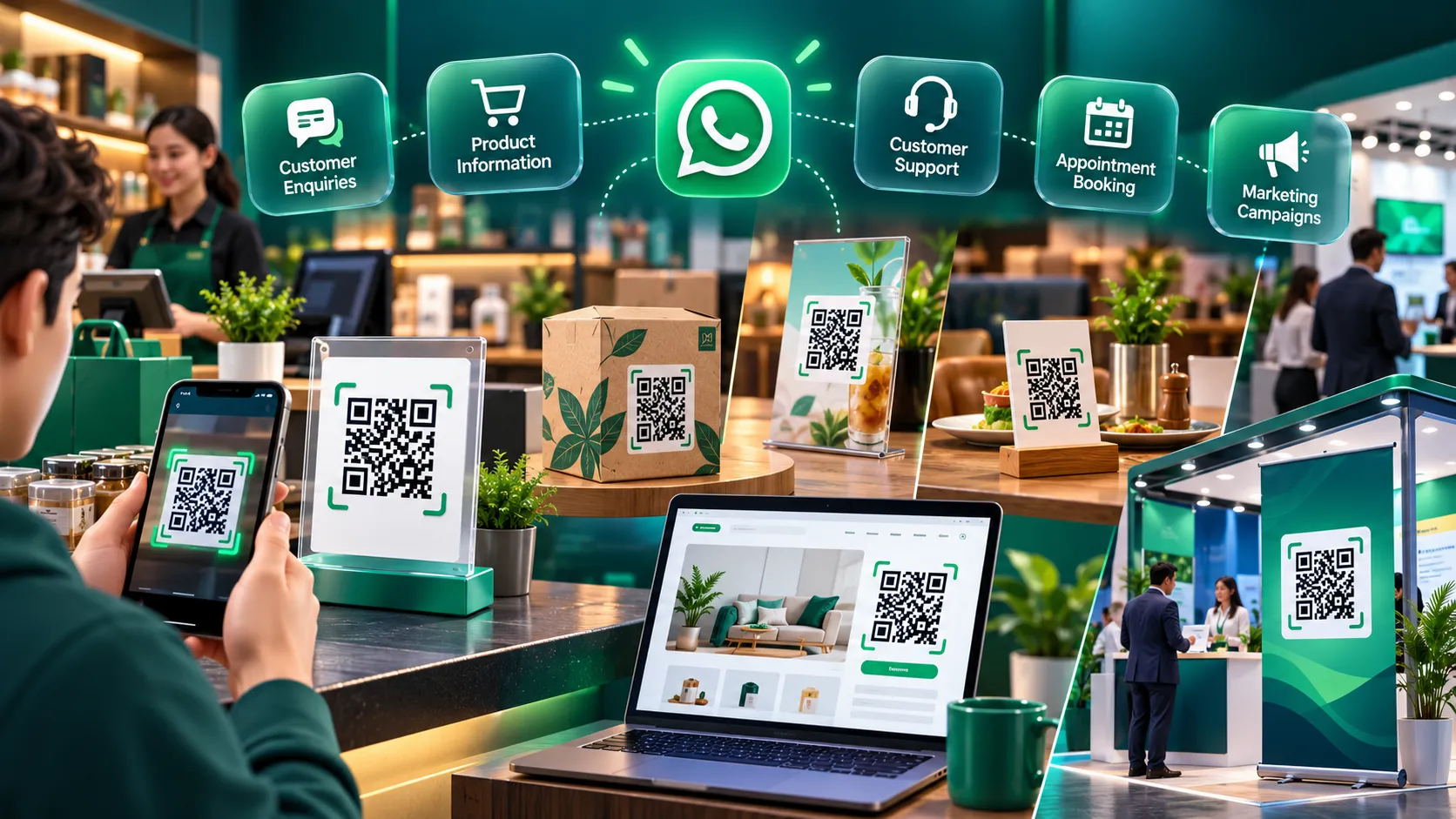
Once you know how to generate WhatsApp QR code files, the next question is where to put them. A code on its own is easy to ignore, and a code with a clear reason to scan it works better. Here is where businesses typically place them:
Flyers and posters: Put the code near the offer, not in a corner.
Storefronts and point-of-sale displays: At eye level, close to where people wait.
Product packaging: A support or "how to use" prompt works well.
Websites and landing pages: Useful when visitors are on a laptop and want to continue on a phone.
Social media posts: Share the image or the link version.
Email signatures and brochures: A neat alternative to a long number.
Exhibition booths: Large codes on banners and tables.
Feedback and support campaigns: "Scan to share feedback."
Sales enquiry campaigns: Different code per ad or location.
Add a clear call to action
Tell people what will happen. "Scan to chat with us" and "Scan to ask about this product" work because they set expectations. Vague text like "Scan me" does not.
Measuring results
Be careful with metrics. A scan is someone pointing a camera at the code. A link click is someone opening the link. A conversation is someone actually sending you a message. These are three different numbers.
A static code does not give you scan analytics. Dynamic codes from some providers do. A simple workaround is to give each campaign its own pre-filled message, for example ending with "(Store A)", so your team can see which printed code each inquiry came from. That counts conversations, not scans.
Consent and messaging rules
A customer who scans and messages you has started the conversation, but that does not automatically mean they agreed to receive marketing messages later. Follow WhatsApp's Business Messaging Policy, applicable privacy laws and your own consent process.
Best Practices for Creating a WhatsApp QR Code
Whichever route you pick for how to generate WhatsApp QR code files, these habits prevent most problems:
Use the correct international number. One wrong digit sends customers to a stranger.
Verify the destination before printing. Open the link on your phone first. Reprinting costs money.
Use strong contrast. Dark code on a light background scans best. Low contrast confuses camera apps.
Make it large enough. A code on a poster read from two metres needs to be much bigger than one on a business card.
Keep empty space around the code. This margin, called the quiet zone, helps the scanner find the edges.
Keep any logo small. An oversized logo hides data the scanner needs.
Pick a good file format and resolution. Vector files (SVG) stay sharp at any size, which matters for banners.
Test on several devices and camera apps. Phones differ in how they read codes.
Add a call to action. People scan when they know why.
Check that the destination suits the audience. A pre-filled message in the wrong language puts people off.
Re-check printed codes. Ink fades, stickers peel and glossy surfaces reflect light.
Keep supporting pages working. If your code leads to a landing page too, keep it live.
Respect privacy and consent. Do not message people in ways they did not expect.
Do Not Do This: Common WhatsApp QR Code Mistakes
Most problems with how to generate WhatsApp QR code files come from small input errors, not from the tool itself. These are the ones we see most often.
Common Mistakes and How to Prevent Them
1. Wrong country code
What happens: The chat opens with a different number or shows an invalid-number message.
How to prevent it: Write the number as country code plus number and test it.
2. Using the wrong WhatsApp number
What happens: Customers message a number nobody checks.
How to prevent it: Confirm which number your team monitors.
3. Broken or incorrect URL
What happens: The code opens an error page.
How to prevent it: Open the link on a phone before generating.
4. Assuming a scan sends a message
What happens: Staff wait for messages that were never sent.
How to prevent it: Remember the customer must press Send; add a clear CTA.
5. Poor contrast or tiny size
What happens: The code will not scan.
How to prevent it: Use dark on light and test at scanning distance.
6. Large logo over the pattern
What happens: Scanning becomes unreliable.
How to prevent it: Keep the logo small and scan-test.
7. Printing without testing
What happens: Hundreds of useless prints.
How to prevent it: Scan the exact file you will print.
8. Relying on an expired or subscription dependent dynamic code
What happens: The code stops working if the account lapses.
How to prevent it: Read the provider's terms; use static for permanent prints.
9. Not updating printed material after a change
What happens: Old materials point to the wrong place.
How to prevent it: Keep a list of where each code appears.
10. Unsupported privacy or security claims
What happens: Misleads customers.
How to prevent it: Only say what you can verify.
11. Sending unsolicited marketing
What happens: Complaints and policy trouble.
How to prevent it: Get consent first.
12. Misleading calls to action
What happens: Loss of trust.
How to prevent it: Say honestly what the scan does.
Common WhatsApp QR Code Troubleshooting
Even if you follow every step of how to generate WhatsApp QR code files correctly, something can still go wrong. The causes below are the usual suspects. Some depend on the phone or app, so treat them as starting points rather than certainties.
The code does not scan. Likely causes are low contrast, small size, glare, or too little empty space around it. Enlarge it, increase contrast and re-test.
WhatsApp does not open. The phone may not have WhatsApp installed, or the camera app may open the link in a browser first. Tapping the prompt usually continues to WhatsApp, or the web page offers a button.
The wrong chat opens. The number inside the link is wrong. Rebuild the link and generate a new code.
The phone number is invalid. Often caused by a missing or doubled country code, or by symbols in the number. Use the plain international format.
The pre-filled message does not appear. Check the ?text= part of the link and the URL encoding. Some tools or app versions may behave differently, so test on another phone.
A custom design makes the code hard to scan. Simplify. Reduce the logo size, use higher contrast and avoid heavy patterns.
It works on one device but not another. Camera apps and scanner apps differ. Test on a mix of devices.
The downloaded image is blurry. A low resolution file was probably enlarged. Download a larger size or a vector format.
A code that used to work now opens the wrong place. If it was a dynamic code, the destination may have been edited, or the account may have lapsed. If it came from WhatsApp's own feature, the code may have been reset.
Things People Often Miss When Creating WhatsApp QR Codes
A QR code only opens a destination. It does not guarantee a conversation.
Pre-filled messages need a tap on Send.
A chat link and a profile sharing QR code are not always the same thing. The built-in code is tied to your account; a wa.me code is built from a link you control.
A static code usually cannot be edited after printing. The destination is baked into the pattern.
Dynamic codes depend on a provider. If the service ends, the code can stop working.
A design preview is not proof. Only a real scan proves it works.
Logos, colours and patterns can reduce reliability.
A valid code does not establish marketing consent.
Scans, clicks and messages are different metrics.
Check the number and link before distribution.
Think about who will answer. A code that sends fifty enquiries a day to one personal phone creates a staffing problem.
Print a short URL next to the code. People with older phones can type it.
How Anantya ai Can Help Businesses Go Beyond a WhatsApp QR Code
A QR code is an entry point. The real work starts after the scan. A typical journey looks like this:
A customer scans your code.
WhatsApp opens a chat with your number.
The customer sends a question or enquiry.
Your business replies through whatever process you have.
For a small shop with one phone, that process can be as simple as answering manually. When enquiries grow, many businesses need more structure. Anantya ai's website describes a conversational engagement platform built on the official WhatsApp Business API, with automation, AI chatbots, lead nurturing workflows, analytics, integrations and live agent assistance, and it lists dedicated pages for WhatsApp marketing, support and commerce.
Here is why that can matter in practice:
Organising enquiries: Instead of messages piling up in one phone, they can be handled through a business platform.
Faster responses: Automation and chatbots can handle repetitive questions, where configured.
Routing and follow-ups: Platform features can help assign conversations and follow up on leads, depending on the setup.
A QR code on its own does not give you a chatbot, automation, CRM, analytics or a shared inbox. Those need separate products, integrations or configuration. Meta's own documentation also describes QR codes and short links that can be created and managed for numbers on the WhatsApp Business Platform, which is a different route from the free consumer tools in this guide.
If you are moving from simply receiving WhatsApp messages to managing them properly, explore Anantya ai's WhatsApp Business API, WhatsApp support and WhatsApp marketing pages.
Additional Questions People Ask About WhatsApp QR Codes
WhatsApp QR code vs WhatsApp link
A WhatsApp link (wa.me) is a web address that opens a chat. A QR code is a picture of that link, or of your account's built-in profile data, that a camera can read. The link works when clicked on a phone or desktop; the QR code works when scanned. A custom QR code is simply a link in scannable form.
WhatsApp QR code vs WhatsApp Business QR code
Both are built into their respective apps. The WhatsApp Business QR code sits beside tools like your business profile and short link, and is meant for customer contact. The personal code is meant for sharing your account with people you know.
Can I create a QR code for a WhatsApp group?
Yes, with limits. In the group, open Group info and use Invite via link to copy the group invite link. Paste that link into a QR code generator. Anyone who scans can request or join according to the group's rules. If the group admins reset the link, old codes should stop working, so test after any change.
Is a WhatsApp QR code free?
WhatsApp's built-in QR code is free. Many generators, including Anantya ai's tool, describe basic code creation as free. Advanced features such as dynamic codes or analytics may need a paid plan with some providers.
Can a WhatsApp QR code be customised?
The built-in code is limited. Custom generators let you change colours, shapes, frames and add a logo, depending on the tool.
Can a WhatsApp QR code expire?
A static code has no built-in expiry, but it stops being useful if the number is no longer active on WhatsApp. A built-in code stops working if you reset it. A dynamic code can stop working if the provider's account lapses.
Can the destination of a printed QR code be changed?
Not for static codes. Only dynamic codes, which use a redirect, let you change the destination.
How to download and print a WhatsApp QR code
Download the highest resolution available, or a vector file if offered. Print a sample first, scan it, then print the full batch. Leave a clear margin and avoid placing it on curved, shiny or crumpled surfaces.
How to update or replace an old QR code
Generate a new code, then replace every printed and digital copy. Keep a list of where each code appears. If the old code came from WhatsApp's built-in feature, use Reset QR code to disable the old one.
Privacy and safety
Anyone who has your code can try to contact you, so share it where you are comfortable being contacted. If a code gets passed around too widely, reset it. Only download generators from reputable sources, and read the privacy policy of any tool where you enter a business number.
Conclusion
You now know how to generate WhatsApp QR code files in three practical ways. WhatsApp's built in QR feature is best for simple, free sharing of your own account or business chat. A third party generator suits cases where you need extra features like dynamic editing or analytics, provided you accept the dependency on that provider. Anantya ai's tool fits when you want a branded chat link code with a frame, shape, logo and an optional welcome message, and you can do it for free.
Whichever you choose, test the final file on a real phone before it goes anywhere near a printer. For your next step, create your WhatsApp QR code with Anantya.ai and scan it on two different phones.