





Picture a visitor on your pricing page late in the evening. She likes what she sees, but she has one small question. Filling out a contact form feels like too much work. Calling is out of the question at that hour. So she closes the tab, and you never find out what she wanted to ask.
A small chat button in the corner of your page can change that story. One tap, and she is talking to you on the app she already uses every day.
That is the idea behind adding WhatsApp chat to a website. Yet most guides online show you one tool and one method, and then stop. Some never explain the basics. Others skip common problems, Android, or how a team can handle many chats. You may have typed widget whatsapp into Google and found exactly that kind of half-answer.
This guide starts from zero and goes step by step. You will learn what it is, how it works, how to add it on different platforms, what can go wrong, and how to choose the right option for your business. Nothing here assumes you know the topic already.
What Is a WhatsApp Widget?
A WhatsApp widget is a small button or chat box that sits on your website and lets visitors start a WhatsApp conversation with your business. It usually appears in a corner of the screen, often with the green WhatsApp icon and a short line such as "Chat with us".
When a visitor clicks it, WhatsApp opens with your business number ready to receive a message. The visitor does not have to save your number, copy anything, or open the app and search for you.
What it means in simple words
Think of it as a doorbell for your website. The visitor does not need to knock on three different doors (email, phone, contact form). They press one button, and the conversation starts in a place they already know.
You may also hear it called a WhatsApp chat widget, a click-to-chat button, or a WhatsApp live chat button. In everyday use, people mix these names. The next sections explain where the small differences are.
Why the word "widget"?
In web design, a widget is a small tool placed on a page that does one job. A weather box, a cookie banner, and a "back to top" arrow are all widgets. This one has a single job: start a WhatsApp chat.
Many free and paid widgets for WhatsApp exist today. Some are just a button. Others show a welcome message, collect the visitor's name, and send the chat to a team inbox. You will see these types later in this guide.
How Does It Work?
Working is simpler than most people think. There are three parts.
The button on your website. This is the visible part. It is a piece of HTML, CSS and JavaScript that your website loads.
A WhatsApp link behind the button. Each button hides a link that points to your WhatsApp number. The basic format is https://wa.me/ followed by your number with the country code, with no plus sign, spaces or dashes. For example, https://wa.me/919355249992. You can add ?text= and a message to pre-fill what the visitor will send.
The WhatsApp app (or WhatsApp Web) on the visitor's device. On a phone with WhatsApp installed, the link opens the app directly. On a desktop or laptop, it opens WhatsApp Web or the desktop app.
So the flow looks like this:
Visitor clicks the button → the link opens WhatsApp → a chat with your number is ready → the visitor types or sends the pre-filled message → your team replies.
Where the replies go
This is the part many guides skip. It depends on how the button is set up.
A simple button sends messages to one WhatsApp number. Replies come to whoever holds that phone or the linked devices.
A platform-connected setup sends messages into a shared team inbox. Several agents can see the chats, take ownership of them, and reply from one business number. This type usually uses the WhatsApp Business API.
If one person handles all chats, the simple button works well. If a team handles many chats, a shared inbox saves a lot of confusion.
Why Do Businesses Use It?
The main reason is simple: customers prefer to message, not to fill forms or wait on hold. Most people already have WhatsApp open on their phone. Starting a chat takes a few seconds, and there is no new app to install or account to create.
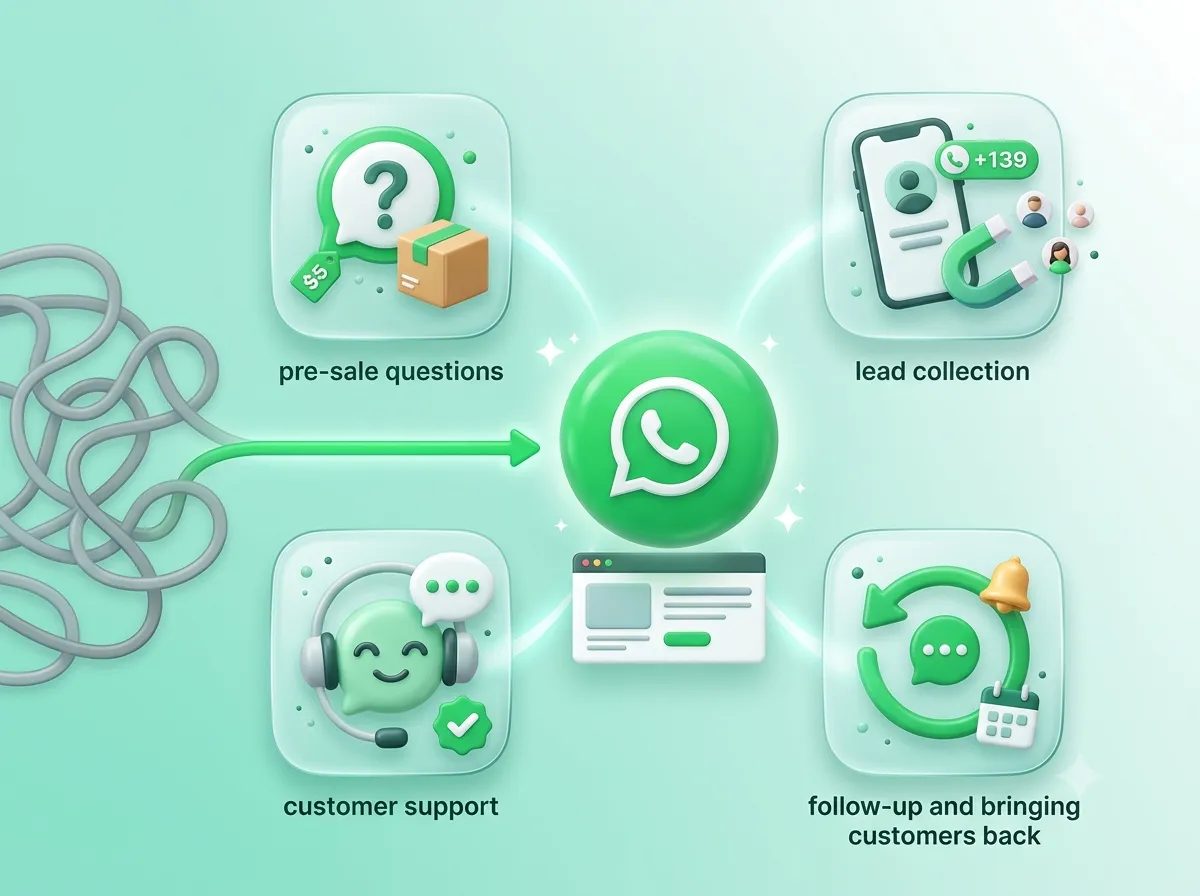
Businesses use it for four common goals:
To answer questions before a sale. A visitor wonders about delivery time, size, price or availability. A quick reply can decide whether they buy.
To collect leads. The visitor's phone number arrives with the first message. You do not need to ask for it.
To give support. Existing customers can write about orders, bookings or problems, and keep the whole conversation in one thread.
To bring people back. Because the chat stays in WhatsApp, you can follow up later (within WhatsApp's rules about messaging customers).
What is the main purpose of adding it to a website?
The purpose is to remove steps between "I have a question" and "I am talking to the business". Every extra step, such as finding a contact page, typing an email address, or waiting for a reply by mail, loses some visitors. A chat button keeps the step count close to zero.
Benefits of Using It
It can help increase conversions
Visitors who are close to buying often need one answer to feel safe. When they can ask it right away, fewer of them leave. This is why a chat button works best on pages where people make decisions, such as product pages, pricing pages and booking pages.
I would not promise a fixed increase in sales, because results change from one website to another. What you can do is measure it. Count how many chats start from each page, then check how many turn into orders or bookings.
It helps generate leads
A visitor who sends a message has shown real interest. You also get their phone number without a form. Compared with a long form, a chat feels light, so more people are willing to start it.
A good habit is to pre-fill the message with the page name. For example: "Hi, I want to know more about the Gold plan." Your team then knows what the visitor was looking at before they even reply.
It improves customer support
Customers get help in a chat they already know how to use. Photos, voice notes, documents and location can all be shared in the same thread. That is useful for a damaged parcel, a prescription, or a floor plan.
It builds trust
A visible way to reach a real person makes a business feel more reliable. This matters most for new or small brands that visitors have not heard of before.
It costs little to start
A basic button is free to create. You will see the cost question in more detail in the FAQs.
It works well on mobile
Most website traffic in many markets, including India, comes from phones. On a phone, tapping the button opens the WhatsApp app directly. That is far easier than typing an email on a small screen.
WhatsApp Chat Bar Explained
A WhatsApp chat bar is a wide strip or bar on your page, often fixed at the bottom or in a corner, that invites visitors to start a chat. It may show a line like "Questions? Chat with us on WhatsApp" with a green button next to it.
The big difference from a small round icon is that a bar has room for words. It can show a short message, an agent's name, a photo, or office hours. This makes the invitation feel more personal.
When a chat bar makes sense
When you want to explain what the visitor will get ("Reply in 5 minutes").
When you have limited screen space on mobile and want a clear, thumb-friendly bar at the bottom.
When your audience may not recognise the icon alone, such as older visitors.
Things to watch
A WhatsApp chat bar that covers content or stays open all the time can irritate visitors. Keep it slim, let it be closed, and avoid placing it over important buttons like "Add to cart" or "Pay now".
Chat Widget vs Chat Button vs Floating Button
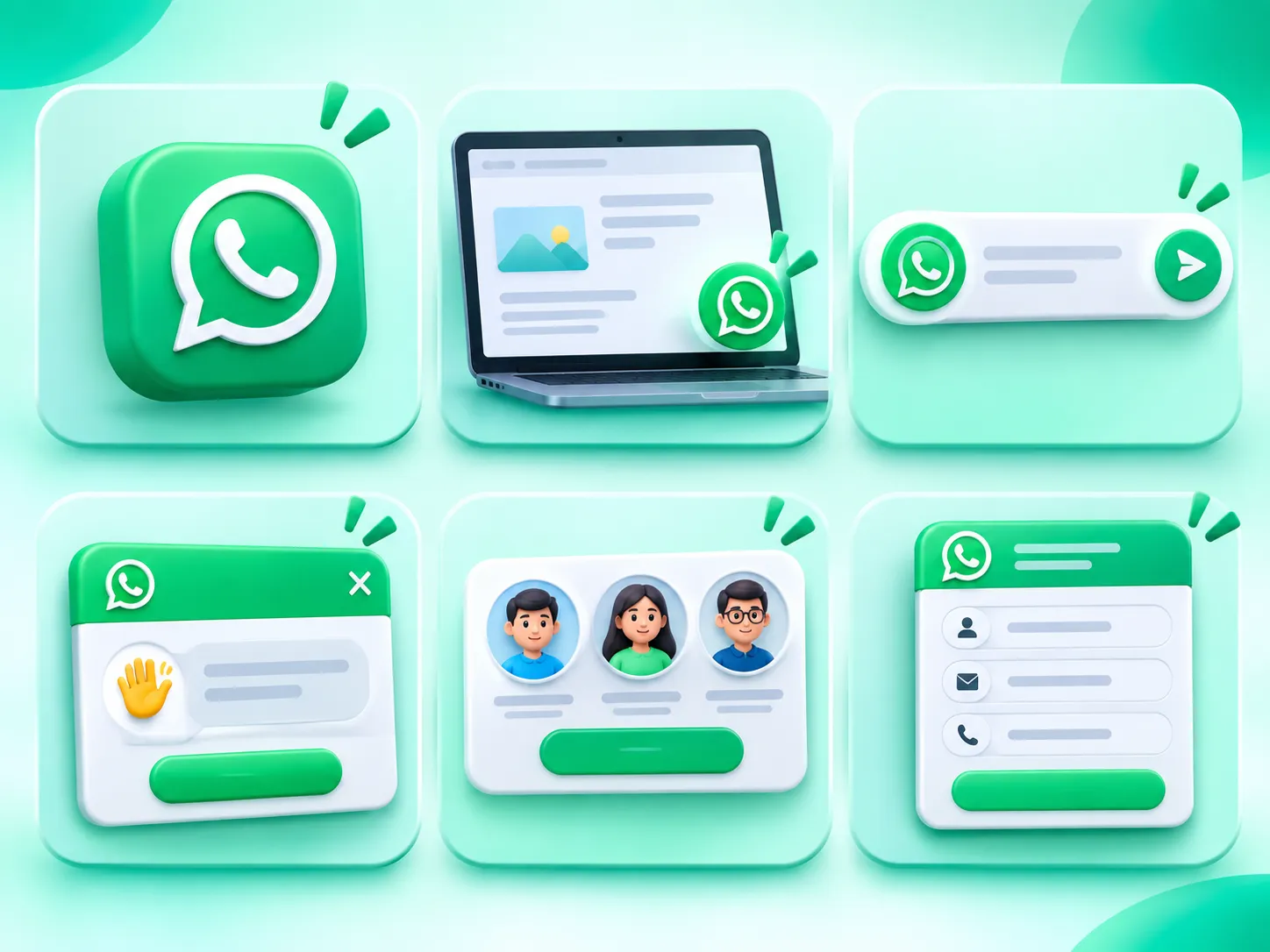
These names overlap, and different websites use them in different ways. Here is a clear way to tell them apart.
Website WhatsApp button
What it is: A normal button placed inside a page, such as in a header, footer or product section
Typical look: Static, sits in one place on the page
Best for: Contact pages, product pages, email signatures
Floating WhatsApp button Website WhatsApp button
What it is: A round icon fixed on the screen that stays visible while the visitor scrolls
Typical look: Small, usually bottom-right
Best for: Websites that want constant, low-effort access
WhatsApp chat bar
What it is: A wider strip with text and a button
Typical look: Bar at the bottom or side
Best for: Inviting visitors with a message or offer
WhatsApp chat widget
What it is: A button plus a small pop-up box with a greeting, agent details or a form
Typical look: Opens a mini chat window
Best for: Businesses that want a friendly first step and more detail
A quick explanation
A website WhatsApp button is the simplest version. It is just a button with a link.
A floating WhatsApp button is that same button, but pinned to the screen so it follows the visitor. Some people call it a WhatsApp float button, which means exactly the same thing.
A chat bar adds words and space.
A WhatsApp chat widget adds a small window on top of the button. The visitor sees a greeting first and then clicks to continue in WhatsApp.
Chat button vs chat widget
A chat button does one thing: open WhatsApp. A chat widget may show a welcome message, a list of agents, business hours, or a short form before sending the visitor to WhatsApp. Widgets give you more control but need a little more setup.
Different Types of Widgets
Not every website needs the same kind. Here are the main types you will meet.
1. Simple click-to-chat button
A basic button with a wa.me link. It is free, quick, and needs almost no technical skill. The downside is that you get no analytics and no team features.
2. Floating WhatsApp button
A round icon pinned to the corner of the screen. This is the most common choice. Some tools also call it a WhatsApp float button. The icon should be easy to see, but small enough not to hide your content.
3. Pop-up chat widget
The button opens a small box with a welcome line, such as "Hi! How can we help you today?" The visitor clicks "Start chat" to continue in WhatsApp. This feels more like a conversation and less like a jump to another app.
4. Multi-agent widget
The visitor can choose who to talk to, for example Sales or Support, and each agent has a name, photo and number. Some tools let you add several agents to the same widget. This is useful when different teams answer different questions.
5. Lead capture widget
It asks for a name or a short detail before opening WhatsApp. This is good for businesses that want a record of every enquiry, but each extra field can reduce how many people start a chat. Ask for as little as you can.
6. WhatsApp chat bar
The wide strip described earlier. It is often used as a banner with an offer or a message.
There are many widgets for WhatsApp on the market, from free generators to full platforms. The right type depends on how many chats you expect and how many people will answer them.
How to Add a Widget to a Website
There are two common ways, and both are simple. Neither needs deep coding skills.
Method 1: Free link and a plain button
This is the quickest way to try the idea.
Write your number in the correct format. Use the country code first, then the number. Do not use a plus sign, brackets, spaces or dashes. Example: 919355249992.
Create your link. It will look like https://wa.me/919355249992?text=Hi%20I%20have%20a%20question. The %20 means a space. Free link generators do this encoding for you.
Add a button to your page. In your page editor, add a button, paste the link, and set it to open in a new tab.
Test it. Click it on your phone and on a computer.
Optional: make a WhatsApp QR code. You can turn the same wa.me link into a QR code. When someone scans it with their phone camera, a chat with your business opens, just like clicking the button. This is handy for places where there is no website to click on, such as a shop counter, a poster, a printed brochure, a visiting card or a product box. Anantya ai also offers a free QR code generator for this.
Method 2: A widget code snippet from a tool
Many tools let you design the widget on a screen and then give you a small piece of code.
Create the widget in the tool. Set the number, colour, position, welcome message and pre-filled text.
Copy the code snippet it gives you.
Paste it into your website, usually just above the closing </body> tag. Several providers recommend this spot, because the widget then loads after your main content.
Save and publish.
Open your website in a new window and check that the widget appears.
If you want it on every page, add the code to a part of your site that loads everywhere, such as the footer or the main theme file. If you only want it on selected pages, add it to those pages alone.
Before you go live
Use a number that your team actually monitors.
Write the welcome message like a human, not like a slogan.
Decide whether the widget should open by itself. Opening automatically as soon as the page loads can annoy people. A short delay or a click-only widget is gentler.
How to Set It Up on Different Platforms
WhatsApp does not offer a ready made option for websites that you can switch on from inside the app. So you add it through a plugin, an app or a code snippet. The idea is the same everywhere; only the place where you paste changes.
Set It Up on WordPress
Open your dashboard and go to Plugins → Add New.
Search for a WhatsApp chat plugin and install one with good ratings and recent updates. Many plugins and widgets for WhatsApp exist in the official directory, so read the reviews and the "last updated" date first.
Activate it, enter your number, and set the position, message and pages where it should show.
Alternatively, use a "header and footer" plugin and paste the snippet from your widget provider into the footer area.
Clear your cache and test.
Set It Up on Shopify
Go to Online Store → Themes → Edit code.
Open the main theme file (usually theme.liquid).
Paste the snippet just above the closing </body> tag and save.
You can also look in the Shopify App Store for a chat app that suits you.
Preview your store on a phone, then check the product, cart and checkout pages.
Set It Up on Wix, Squarespace and similar builders
These builders have a custom code or "code injection" area. Paste the snippet in the footer section. On some plans, this feature may be limited to paid plans, so check your plan.
Custom HTML website
Paste the snippet before </body> in your HTML files or in a shared footer file.
Google Tag Manager
If you use Google Tag Manager, you can create a new Custom HTML tag, paste the snippet, set it to fire on all pages (or chosen pages), and publish. This is helpful when you do not want to touch your site's code.
Using it on an e-commerce website
Online stores need a little more thought than a simple blog.
Product pages: Pre-fill the message with the product name, such as "Hi, is the blue kurta available in size M?" Some tools allow page-based messages.
Cart and checkout: Keep the button away from the "Pay now" button. Help with payment issues is useful, but a button that distracts people from paying is not.
Order tracking page: This is a great place for a chat button because people often write here when a parcel is late.
Mobile layout: Check that the floating icon does not cover the "Add to cart" bar that many stores pin at the bottom.
Business Use Cases and Practical Examples
Here are five real-world ways different businesses use a chat button.
Hospitals and clinics
A patient can ask about doctor timings, request an appointment, or ask which documents to bring. The front desk replies from a shared inbox. Because medical details are private, the team should avoid asking for sensitive information in an open chat and should follow the rules that apply to them.
Online stores
A shopper asks about size, colour or delivery to their pincode. The store replies with a photo or a payment link. After the sale, the same chat can answer "Where is my order?" questions.
Educational institutes
Parents and students ask about admission dates, fees, courses and documents. A pre-filled message like "I want to know about the MBA admission process" helps the counsellor respond with the right details.
Service businesses
A salon, a repair shop or a consultant can use the chat to take booking requests and quote prices. Each chat starts with the visitor's number, so there is no separate lead form to maintain.
Real estate companies
A buyer looking at a property page taps the button and sends "I am interested in this 3 BHK." The agent replies with photos, a brochure and a visit time. Using a different message for each project helps the sales team see which listing the buyer is asking about.
Important Features to Look For
Not every chat widget offers the same features. Here is a checklist for comparing them.
Easy customisation: colour, position (left or right), icon, welcome message, pre-filled text and button label.
Mobile-friendly design: it should look good and be easy to tap on small screens, and a WhatsApp chat bar should be easy to close.
Page-wise control: show it on some pages and hide it on others, such as checkout.
Multiple agents: the option to add several people or departments.
Shared team inbox: a single place where your team can see, assign and reply to chats.
Lead details: the visitor's name, phone number and the page they came from.
Business hours: show a different message when you are offline.
Analytics: how many people clicked the button and from which pages.
Speed: the widget should be light and not slow down your page.
Security and compliance: especially if you use the official WhatsApp Business API, since it follows WhatsApp's rules for businesses.
Support: someone to help you when setup goes wrong.
Anantya.ai: Creating a Website Chat Widget for Your Business
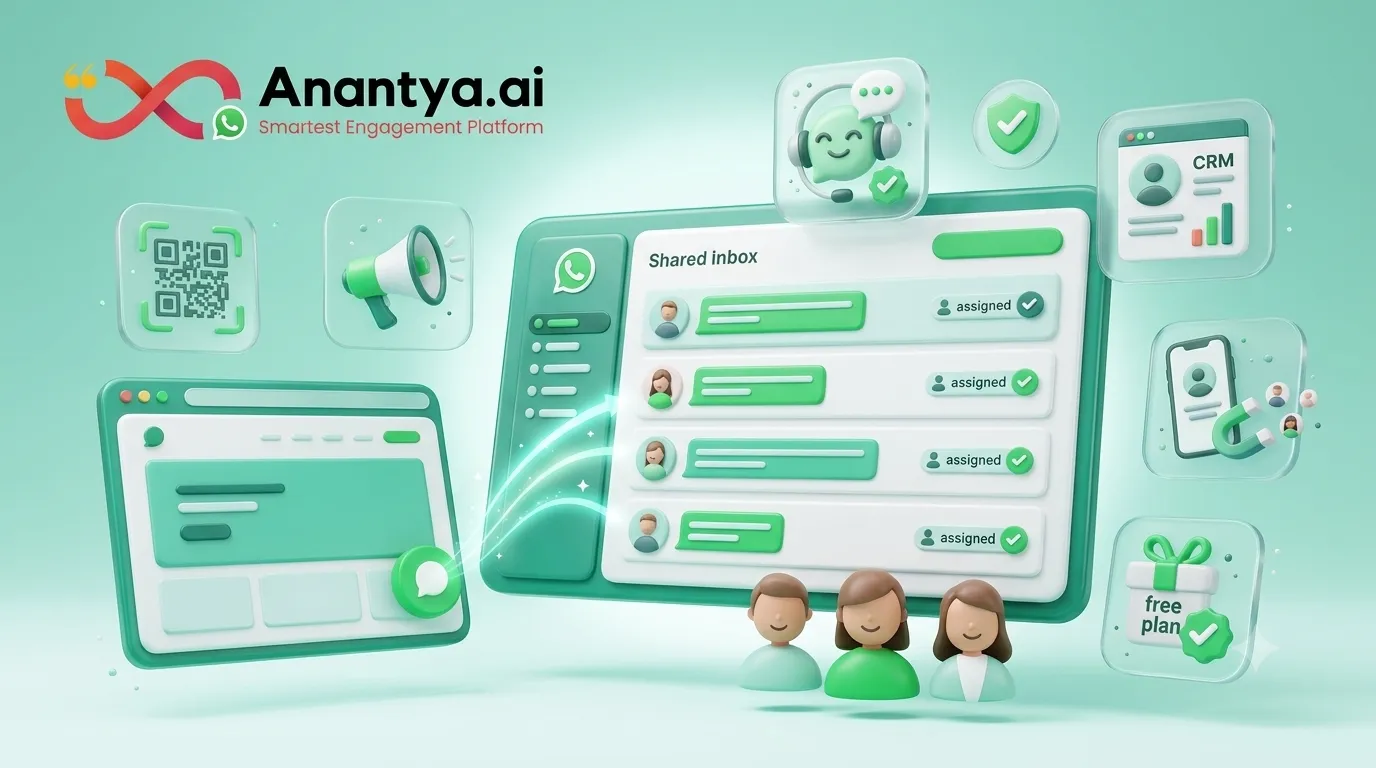
Anantya ai is a WhatsApp Business API platform and an official Meta Tech Partner. It is built for businesses that want to talk to customers on WhatsApp in an organised way, not just from one phone.
Here is how it relates to what you have read so far.
Free website widget. Anantya ai offers a free WhatsApp website widget that you can add to your site to capture leads. A chat widget like this lets visitors start a conversation with your business from any page where you place it.
Team inbox and live chat. Its multi-agent live chat gives your team a shared inbox, so several people can handle customer conversations from a single WhatsApp number.
Customer conversations in one place. Instead of chats being stuck on one person's phone, they sit in a central inbox where your team can see and answer them.
Lead collection. Because every chat from your website begins with a visitor's message, you can keep a record of people who showed interest.
Other tools. Anantya ai also offers a free QR code generator to send customers to a WhatsApp chat, along with broadcasts, chatbots and CRM integration for businesses that want to do more with WhatsApp.
A free plan. You can start on a free plan and move to a custom plan as your volume grows.
Features and plans can change, so check the Anantya ai website or book a demo to confirm what is included for your needs.
If you are only testing the idea, a plain link may be enough. If more than one person will answer chats, or you want every conversation tracked, a platform like this saves time.
Common Problems and Their Solutions
Even a simple button can go wrong. Here are the problems people face most, with fixes.
Even a simple button can go wrong. Here are the problems people face most, with fixes.
The widget does not show on the site
Likely cause: Code not saved, pasted in the wrong place, or cached page
What to do: Paste the code above </body>, save, clear cache (site and browser), and reload
It shows on some pages but not others
Likely cause: Code added to one page only, or page rules exclude it
What to do: Add it to a shared footer or check the page settings
"Phone number shared via URL is invalid"
Likely cause: The number has a plus sign, spaces, or no country code
What to do: Use digits only with the country code first
Pre-filled message is missing or broken
Likely cause: Spaces or special characters not encoded
What to do: Use a link generator or replace spaces with %20
Button opens WhatsApp Web with a login screen on desktop
Likely cause: The visitor is not logged in on that computer
What to do: This is normal. Phones open the app directly. Suggest they use WhatsApp Web or their phone
Button hides other buttons
Likely cause: Position clashes with your cookie bar, chat or "Add to cart" bar
What to do: Move it to the other side or raise it slightly
Page feels slower
Likely cause: Heavy script or too many plugins
What to do: Choose a light widget and test your page speed
A WhatsApp chat bar covers text on small screens
Likely cause: The bar is too tall or cannot be closed
What to do: Make it slimmer, allow closing, or hide it on mobile
Messages reach only one person
Likely cause: The number is on one phone
What to do: Use a shared inbox or platform with multiple agents
The home-screen widget will not add on Android
Likely cause: Home screen is full, app is out of date, or the launcher blocks it
What to do: Free up space, update WhatsApp and the system, or restart the phone
A quick troubleshooting routine
If your widget is not working, go through this list in order:
Open your site in a private or incognito window to avoid cached pages.
Check the number format.
Look at the code in your page source to confirm the snippet is there.
Turn off other plugins one by one to look for a clash (mostly on WordPress).
Test on both a phone and a computer.
Ask the widget provider's support for help if it still fails.
How to Choose the Right Widget
Before you choose a provider, ask these questions.
How many people will reply? One person can use a simple button. A team needs a shared inbox.
How many chats do you expect? More chats mean you need assignments, tags and reports.
Do you need the official WhatsApp Business API? It is meant for businesses that want team access, automation and larger scale.
How much control do you want over the design? Check the customisation options before you commit.
What does it cost? Look at the plan price and any WhatsApp message charges from Meta. Pricing rules change, so read Meta's current pricing page.
Is the provider trusted? Look for official partner status, real reviews and clear support options.
Does it fit your platform? Check that it works with WordPress, Shopify or whichever platform you use.
What happens to your data? Read the privacy policy and ask where chats are stored.
Can you start small? A free plan or a trial lets you test before you pay.
A search for widget whatsapp tools shows dozens of choices, so use the questions above to narrow them down. Whichever option you pick, set up one clear rule for your team: who replies, how fast, and what to say when you are offline. A good tool cannot make up for slow replies. Many widgets for WhatsApp look similar, so the quality of your replies is what customers will remember.
Conclusion
A chat button is a small addition to your site that can make a big difference. It shortens the path between a question and an answer, brings in leads without forms, and lets customers reach you in an app they trust.
Start simple. Pick the type that matches your team size, add it to the pages where visitors need help, write a friendly greeting, and test it on both a phone and a computer. Then watch which pages bring the most chats and improve from there. If you plan to use a WhatsApp chat bar, keep it slim and easy to close. If you serve Android visitors, test it on a real phone.
When you are ready to go beyond a single phone, Anantya ai can help you create a website chat widget, manage conversations in a shared team inbox, and collect leads in one place. Visit Anantya ai to explore the free widget, set one up for your website, or book a demo to see how your team can handle customer chats together.
Frequently Asked Questions
Comments (0)
No comments yet. Be the first to share your thoughts!
Leave a Reply
Your email address will not be published. Required fields are marked *