




WhatsApp Business Account Creation- Step-by-Step Guide
Introduction
If you’re searching for how to create a WhatsApp Business account, you’re already one step closer to making your business look more professional, faster, and easier to reach. This guide explains everything, using relatable examples, clear steps, and answers all common problems businesses face while setting up the account, including “verification code not received” and questions related to switching from normal WhatsApp to WhatsApp Business.
Let’s start your complete WhatsApp Business account setup guide.
Why Do You Need WhatsApp Business?
If you run a business, even if it’s a small shop, home business, or an online store, WhatsApp Business is not just “good to have,” it’s a game changer. Unlike normal WhatsApp, the Business app gives you:
- Professional business profile
- Auto replies to customers
- Labels to organise customers
- Catalog to showcase your products
- Quick replies for FAQs
- Business hours information
- Messaging statistics
These are the few most used features that save time, help you respond faster, and make your business look trustworthy.
See how different businesses can best use different features-
- Small businesses/ shop: Labels + quick replies help organize and manage walk-ins and repeat customers.
- Ecommerce: Catalog + product images + pricing = display your products helps in smoother sales.
- Service providers (salons, tutors, agencies): Business hours info + auto reply = instant customer engagement.
- Growing businesses: Start with the WhatsApp Business app upgrade later to WhatsApp API when you need automation.
Requirements Before You Start


Before you create a WhatsApp Business account here are a few quick information that you’ll need:
- A phone number (personal or new)
- Business name
- Business address (optional but recommended)
- Small description (bio)
- Website/social media link (optional but recommended, as it helps the customers with their research without having to ask you for every little query they have, saving up your time and energy too!)
Personal Number vs New Number - What Should You Choose?
Use Personal Number If:
- You are a solo entrepreneur
- Customers already contact you on personal WhatsApp
Use a New Number If:
- You want separation between business & personal life
- Your team will handle customer support
- You plan to upgrade to WhatsApp API later
Here are the steps explained to set up your account
Step 1 – Install the WhatsApp Business App on your Phone
Install the app directly from:
- Google Play Store (for Android users)
- Apple App Store (for iPhone users)
Search for WhatsApp Business → check the green WhatsApp icon with a “B” → tap Install. This app is free and works exactly like normal WhatsApp, but with added business tools.
Step 2 – Create Your Account & Verify Your Number

Once you have successfully installed the app on your phone:
- Open the WhatsApp Business app.
- Enter the phone number you want to use.
- Select your country code.
- Tap Next.
- You will receive a 6-digit verification code on the number provided above, via SMS.
- Enter the code → proceed.
SMS Code Not Received?

If do did not receive any WhatsApp Business verification code on the given number, try these:
- Check if your phone has network
- Turn airplane mode on → off
- Restart your phone
- Try “Call me instead” option
- Ensure the number is not active on another device
- Clear app cache (Android)
- Check if your SMS inbox is not full and has space to receive new messages
- Wait 10 minutes before requesting a new code
If none of these work, WhatsApp may be rate-limiting the OTP. Try again after 12–24 hours.
Step 3 – Set Up Your WhatsApp Business Profile
This is basically your digital visiting card. Fill it properly with relevant detail, as it helps customers trust you instantly.

Go to Settings → Business Tools → Business Profile and add:
- Business Name (cannot be changed later)
- Business Category
- Business Description (bio)
- Business Address
- Website / Instagram / Facebook links
- Business Hours
Here are a few Bio Templates you can use (Simple & Effective)
Professional (English)
- For businesses that sell essential items- “Trusted store for daily essentials with fast delivery guaranteed.”
- For businesses that sell skincare and cosmetics- “Premium skincare curated for Indian skin types.”
Service-Based (English)
- “Digital marketing services to help your brand grow.” (Add a list of services you provide)
- “Home salon services - convenient, hygienic, affordable.”
Local-friendly (Hinglish touch):
- “Fresh bakery items daily – ghar jaisa taste.”
- “Fast repair service – pick-up & drop available.”
Step 4 – Setup WhatsApp Business Features (Quick Replies, Labels & Catalog)
The real power of WhatsApp Business is in its tools. Here are the most useful ones:
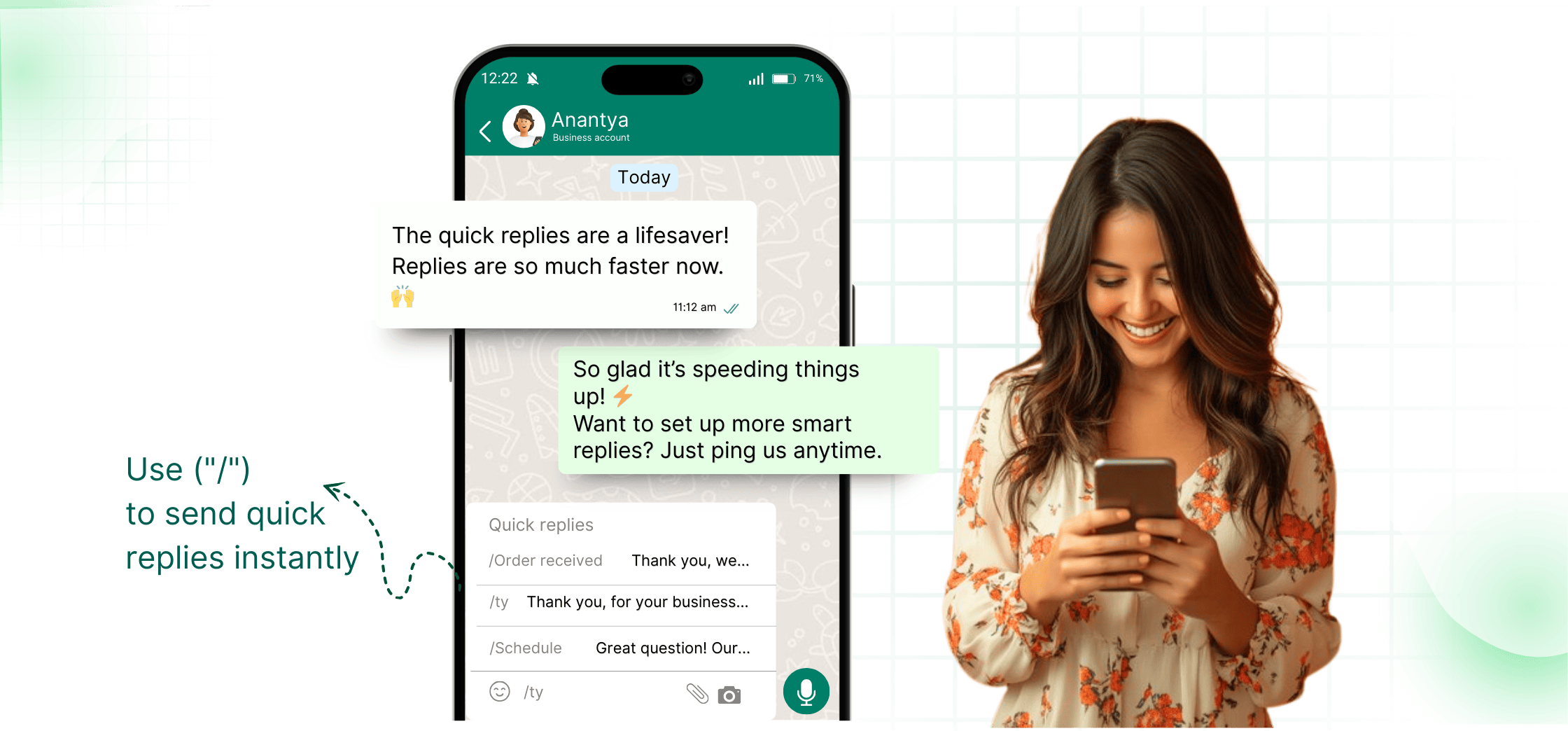
1. Quick Replies
Save your most used messages like:
- “Hi! How can I help you today?”
- “Your order is confirmed.”
To send quickly, type / and select and you are sorted within seconds.

2. Labels
Organise chats based on:
- New Customer
- Pending Payment
- Completed Order
- VIP
- Regular customers
Makes it easy to manage hundreds of conversations and personalize the experience according to the categories they fall under.

3. Catalog
Showcase your products with images, price, and description.
Quick Tips to add Catalog:
- Use bright, clear photos
- Keep product names short
- Add sizes, weights, or variants
- Avoid blurry or duplicate images
- Avoid AI generated images
- Update stock regularly

To secure your WhatsApp Business account:
- Go to Settings → Account → Two-step verification
- Set a 6-digit PIN
- Add your email for backup
This protects your number from being misused or hacked.
Common Problems & Solutions (Quick FAQ Style)

1. Account Banned or Flagged - What to Do?
- Do not send bulk messages manually
- Do not add unknown contacts to groups
- Avoid using shortcuts or spam-like content
- Appeal through in-app support if banned by mistake
(Note- If you regularly want to shoot bulk messages to existing and/or new customers for promoting new products or your brand, or if you want them to know about your latest offers, switching to WhatsApp Business API is the best move for the growth of your business.)
Can’t Switch from Personal WhatsApp?
Backup your chats → uninstall standard WhatsApp → install Business app → login again.
Catalog Not Showing to Customers

- Update app
- Restart phone
- Ensure your number is not in “Blocked Contacts” in the end user’s phone.
Create Your Anantya.ai Account
Conclusion & Quick Checklist
Click Here to Download the PDFCreating a WhatsApp Business account is simple once you follow the right steps. Now you know exactly how to create a WhatsApp Business account, from installation to verification, profile setup, catalog creation and extra features.
If your business is growing and you want automation, broadcasts, chatbots, and multi-agent support, the WhatsApp Business app may not be enough.
That’s when you upgrade to WhatsApp Business API.
Anantya.ai is Meta’s official tech partner and can help you unlock automation and high-volume messaging, and take your customer support game to a next level. Upgrading from WhatsApp Business to official WhatsApp Business API today.
Download the WhatsApp Business app → enter your phone number → verify the OTP → set up your business profile → start using WhatsApp Business.
Enter your phone number → receive a 6-digit SMS verification code → enter it in the app → your WhatsApp Business account gets verified.
Open WhatsApp Business → go to Business Tools → select Catalog → tap Add New Item → upload images → add product name, description, and price → save.
Go to Settings → Account → Change Number → enter your old and new phone numbers → verify the OTP → number change completed.
Check your network connection → restart your phone → toggle airplane mode → use the “Call me instead” option → ensure the number is not active on another device → wait for some time and try again.