

Resources


WhatsApp Template Messages is a predefined message that you can use multiple times to connect with your audience once they've opted-in to receive a message from you. To send these templates to users, businesses need to get approval from WhatsApp.
Usually, it takes between 1 minute to 24 hours for WhatsApp template messages to be approved.
WhatsApp Template Messages can be in formats like Text, Image, File, or Video. Every format must include Text, which is necessary. This means sending only Images, Files, or Videos as Template Messages is not allowed.
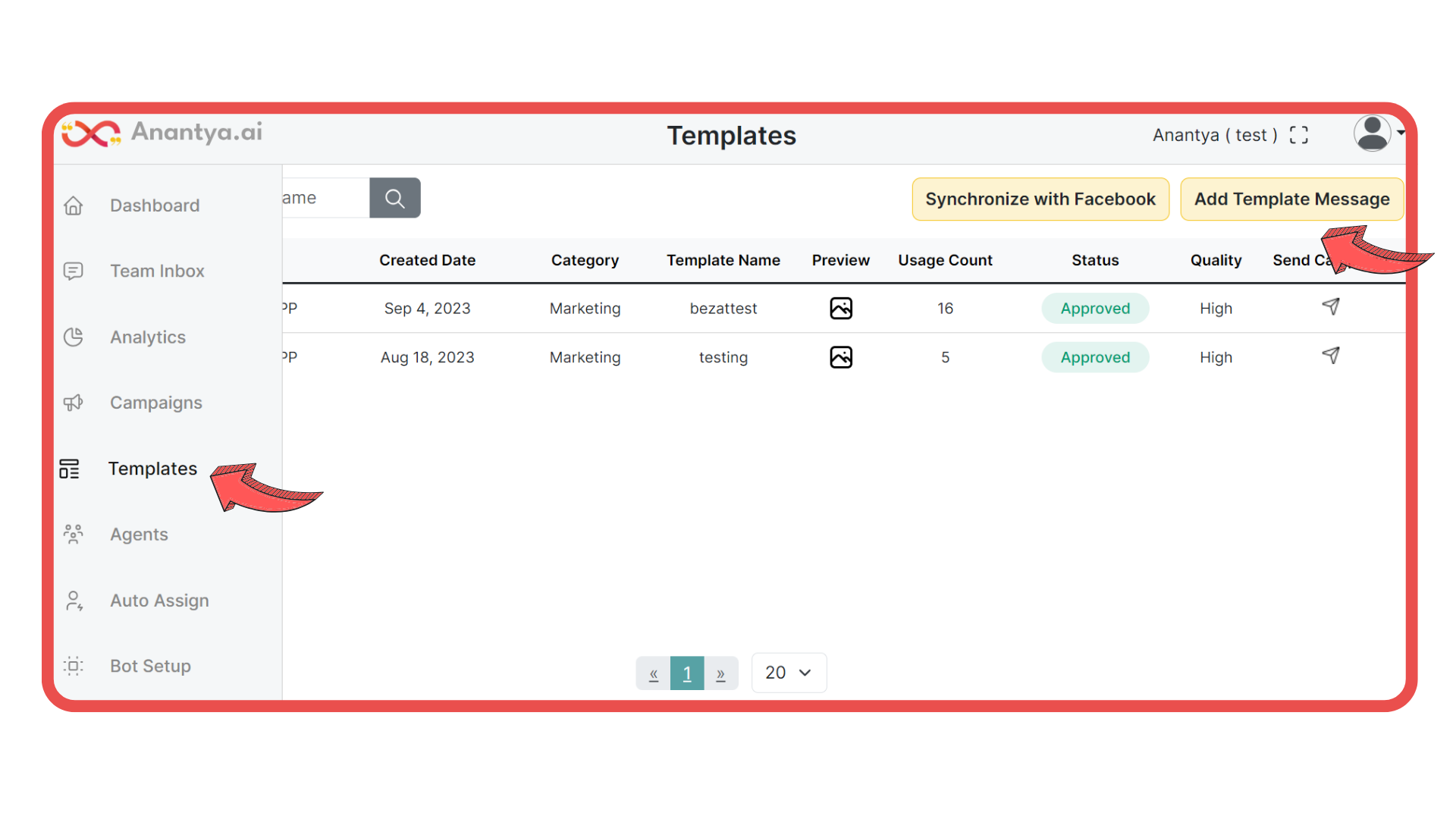
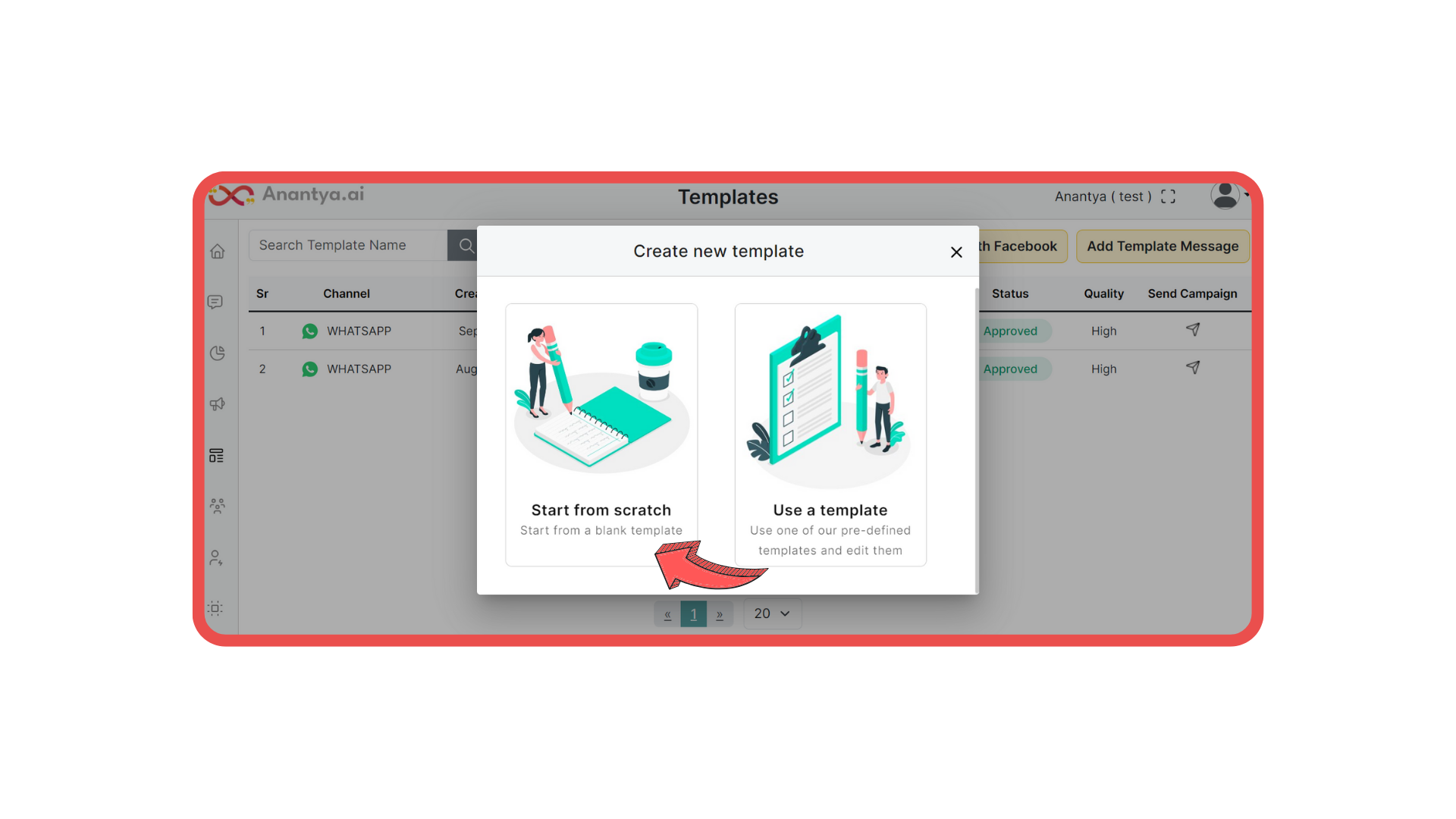
You can start creating a template from scratch or choose a pre-approved Template message and submit it for approval.
1. Begin by choosing the communication channel.
2. Select the appropriate template category.
WhatsApp Template Messages offer various categories to suit different usage scenarios.
Utility: Messages oriented towards transaction confirmations, cancellations, or subscriptions.
Authentication: Messages containing one-time passwords (OTPs) and login codes for user verification.
Marketing: Messages encompassing a business's products and services promotion, excluding transaction-related content.
You have the option to select the language for your WhatsApp template message from a wide range of global languages and vernacular options. Please note that you can only choose a single language for each template message.
4. Provide a name for your template. Ensure that the Template Name matches the Template Label. Make a few adjustments, such as starting with a lowercase letter and replacing spaces with underscores. For instance, use names like 'account_update', 'otp_verification', etc.
5. Add a title or choose the type of media you want for the header. This sets the kind of WhatsApp template message you're sending, like TEXT, IMAGE, VIDEO, or FILE.
Remember, you can't just send images alone. You need to include text with images, videos, or files.
Remember, the media file has to come with some text. You can't only send Images, Files, or Videos. TEXT is a must because WhatsApp's approval depends on the text.
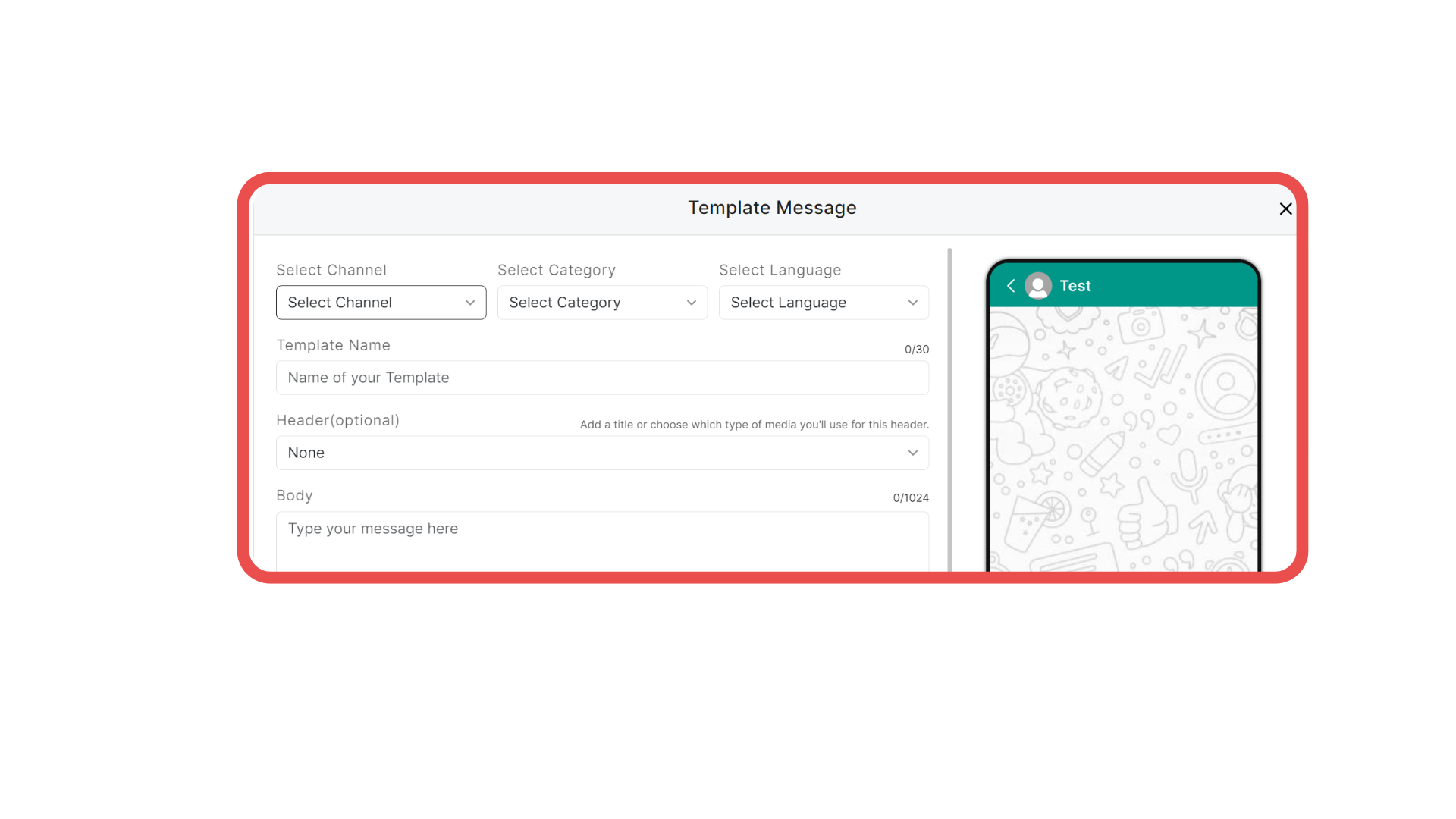
6. Write down the template message that you plan to send to users once it's approved by WhatsApp in the text box.
7. Use variables to customize the template for individual users. Insert placeholders in the text and give them names.

After completing the template creation, you need to submit it for approval. Anantya.ai will send the template for review, and you’ll be notified once it gets approved by WhatsApp.
On average, approval can take between 1 minute to 24 hours.
